# Completion Facilitator
This book serves as the complete **SOP and reference guide** for the **Completion Facilitator** role at **Upastra Digital Media**. It defines the purpose, workflows, and responsibilities of the team members who ensure that every client project transitions smoothly from development to final delivery.
# DNS - Domain & Hosting Setups
# How to Point a Microsoft Domain to Hostinger Hosting
## Objective
Point a domain purchased and managed through Microsoft 365 to a Hostinger hosting plan using an A record, then install WordPress on Hostinger.
## Scope and Impact
- Approach uses A/CNAME records only to keep Microsoft 365 email intact.
- Nameservers remain on Microsoft 365. Do not change them.
## Prerequisites
- Microsoft 365 Admin Center access with permission to manage Domains.
- Hostinger account access to the target hosting plan (owner or account-sharing).
- The domain name and desired website location/region.
- WordPress admin email, username, and a strong password.
## High-Level Flow
- Prepare hosting in Hostinger.
- Get the server IPv4 address from Hostinger.
- Add DNS A record (and www CNAME) in Microsoft 365 Domains.
- Wait for DNS propagation and verify.
- Install WordPress on Hostinger and enable SSL.
## Prepare Hostinger
- Log in to Hostinger and switch to the client profile if using Account Sharing.
- Create or select the target website under Websites or Hosting.
- Choose the closest server location to the target audience.
## Get Hostinger IP
- In Hostinger, open the hosting control for the target site.
- Locate the server IPv4 address (commonly shown as Server IP or IPv4).
- Copy the IPv4 address for DNS.
## Configure DNS in Microsoft 365
- Sign in to Microsoft 365 and open Admin Center.
- Go to Settings > Domains.
- Select the target domain.
- Open DNS records management for the domain.
- Add or update the following records:
Record
Host/Name
Value (Points to)
TTL
Purpose
A
@
Hostinger IPv4 (e.g., 192.0.2.123)
300–3600
Root domain to Hostinger
CNAME
www
@
300–3600
www → root redirect
- Ensure existing MX, SPF, DKIM, and CNAME records for Microsoft 365 email stay unchanged.
- Save changes.
## Verify Propagation
- Allow 5–60 minutes for DNS to begin propagating (up to 24 hours globally).
- Check by visiting the domain and by DNS lookup for the A record pointing to the Hostinger IP.
## Install WordPress on Hostinger
- In Hostinger, open the Auto Installer or WordPress setup.
- Select the target domain from the dropdown.
- Enter site title, admin email, username, and password.
- Complete installation and note the wp-admin URL and credentials.
- After DNS resolves, request or enable SSL (Let’s Encrypt) from Hostinger and force HTTPS in WordPress settings.
## Post-Setup Tasks
- Log in to WordPress and set Site Address and WordPress Address to HTTPS.
- Install a security plugin and caching plugin if required.
- Confirm email DNS: MX records must still point to Microsoft 365; send and receive a test email.
- Add an A record for any needed subdomains or verify that www works via CNAME.
## Troubleshooting
- Domain still not resolving: Confirm the A record value matches the Hostinger IPv4 and there is no conflicting A record for @.
- www not working: Ensure the CNAME for www points to @ and there is no A record for [www](http://www/).
- Email delivery issues: Verify MX records still point to Microsoft 365 and SPF includes Microsoft’s include directive; do not change nameservers.
- SSL not issuing: Wait until A record fully propagates to the Hostinger IP, then reissue SSL.
## Handoff Notes Template
- Domain: <yourdomain.com>
- DNS change: A record for @ set to <Hostinger IPv4>, CNAME for www set to @.
- Nameservers: Unchanged (Microsoft 365).
- WordPress: Installed on Hostinger. Admin: <email>, URL: <domain>/wp-admin.
- SSL: Requested/enabled after propagation.
- Email: Microsoft 365 remains active and tested.
# How to Manage Client Domains, Hosting, and WordPress Logins Without Headaches
Client said: Complete website design, will connect domain later.
First login message from client was incorrect.
Client sent GoDaddy logins but no hosting was found there.
Asked client for hosting details.
Client sent WordPress.com logins instead of hosting access.
Asked for wp-admin URL; WordPress not installed on domain yet.
Asked client for invite; client still has no hosting.
Explained to client what hosting is, repeatedly.
Received GoDaddy logins again, still no hosting.
Recommended our hosting; client still unclear on hosting concept.
Meeting held; client bought hosting but domain connection not confirmed.
Hosting login for Hostinger not confirmed in meeting.
Sent domain account confirmation messages; client refuses to share logins, asks what to do.
Asked client to install WordPress on Hostinger, since we have access there.
Asked client to update IP address to point domain to Hostinger hosting.
# Website Changes
# How to Make Website Changes Text Updates & Layout Adjustments - Appex Luxury Travel
## **Detailed List of Changes from the Video**
### **1. Destinations Section**
- Highlighted **Caribbean** as main specialty.
- Added **other European countries** (e.g., Paris, Amsterdam, Germany, Greece, Rome, Switzerland, Norway, Iceland) in the destinations.
- Removed **Japan** from the destinations (client does not do Japan trips).
- Added **Indian Ocean destinations** (Maldives, Mauritius, Seychelles, etc.).
- Added **South Pacific destinations**: Hawaii, Fiji, Tahiti, Bora Bora, Marquesa.
- Added **South America** and **Central America**.
- Added **Gulf countries**: Dubai, United Arab Emirates (client chose not to include Saudi Arabia, Oman, Kuwait).
- Added **Pakistan** as a nearby destination.
- Added **Aruba** as a new top destination on the homepage (first position in list).
- Removed some **duplicated destinations** and unnecessary top destination placeholders.
- Updated **top home page destinations**: Italy, Spain, Maldives, Bora Bora, Mexico, Canary Islands, Switzerland.
---
### **2. Homepage Photo Updates**
- Replaced **Caribbean background image** with a beach scene (Aruba or St. Lucia).
- Changed **top destinations mountain image** to highlight **Northern Lights in Norway**.
- Updated homepage images where people are gazing, replaced with **Barcelona viewpoint** type images.
- Removed **real photos gallery** temporarily; will be added later when photos are ready.
- Changed all home page **destination photos** to match the updated destinations list.
---
### **3. Services Section**
- Added new **service boxes**:
1. Group Tours
2. Wellness Retreats
3. Bucket List Destinations
- Ensured each service has a **separate window / box**.
---
### **4. About Us Section**
- Updated **story/journey section**.
- Removed “Explore Top Destinations” from About Us page.
- Replaced **headshot photo**; client to send new one for update.
---
### **5. Contact / Email Section**
- Verified and added **email account information** from Hostinger.
- Client will provide **phone number** and social media links to add.
- Added **Facebook and YouTube page links**.
---
### **6. Domain & Website Setup**
- Checked the website domain (`epiclux.com`) setup.
- Verified **hosting and active website email**.
- Ensured domain is correctly connected and functioning.
---
### **7. Miscellaneous**
- Removed **testimonials tab** temporarily; will reactivate later.
- Removed unused / placeholder gallery elements.
- Refreshed multiple sections to update visuals and content.
- Removed **copyrighted Google images** and replaced with client-approved alternatives.
---
### **Summary**
- Main focus: **Destinations updates and visual refresh** (home page, photos, gallery).
- Secondary focus: **Services section updates** (added 3 new boxes).
- Other updates: **Contact info, About Us, domain/email verification**.
- Removed unnecessary placeholders, duplicated entries, and copyrighted content.
# How to Make Website Changes Images, WooCommerce Products & Layout Adjustments - The Word Of God
In this video, I walk you through the process of making essential updates to a website, including image changes, WooCommerce product updates, and layout adjustments. Whether you're managing an eCommerce store or refining a website’s design, these edits are key to keeping your site fresh and functional.
🔹 What You’ll Learn:
✅ How to replace and update website images
✅ Editing and managing WooCommerce product details
✅ Making layout adjustments for a better user experience
✅ Best practices to ensure smooth updates without breaking the site
# Client Communication
# Daily Tasks Guide - How To Do Daily Tasks
# How to Start or Create a New Project | Step-by-Step SOP
### **Purpose**
This SOP outlines the step-by-step process for uploading a new client project. It ensures that every project is properly documented, organized, and tracked from the beginning, maintaining consistency and data security across all team members.
---
## **1. Requirements Checklist**
Before starting the project upload process, make sure you have collected the following items from the client:
- ✅ **Inspirational Website(s)** (reference links or design examples)
- ✅ **Logo** (in PNG, SVG, or vector format)
- ✅ **Content** (text, images, and any brand material)
- ✅ **Login Details** (WordPress, hosting, domain, or cPanel)
- ✅ **Total Pages and Their Names** (complete sitemap if available)
- ✅ **Any Specific Notes** (special requests, colors, fonts, or functionality)
Ensure all of these materials are complete before proceeding.
---
## **2. Project Uploading Steps**
### **Step 1: Create a New Project in ClickUp**
- Open ClickUp and create a **new task/project**.
- Use the following naming format:
**Client Name (Country)**
*(Example: John Smith (USA))*
- Add the project under the appropriate workspace or list (e.g., “Active Projects”).
---
### **Step 2: Create a Folder in Google Drive**
- Log in to the official **SMTP Drive account** (company-managed Google Drive).
- Create a new folder using the same name as the ClickUp project.
*(Example: John Smith (USA))*
- Copy the folder link and paste it in the **ClickUp Description section** — as shown in the reference photo.
- This folder will contain **all client files, media, and communication records.**
---
### **Step 3: Collect and Upload All Client Data**
- Take **screenshots of all client chats**, including conversion and order chat.
- **Download all images, videos, documents, and other files** shared by the client.
- Upload everything to the client’s folder in the **SMTP Drive account**.
- Double-check that all files are uploaded correctly and organized in labeled subfolders (e.g., “Logo,” “Content,” “References”).
---
### **Step 4: Create a Subdomain for the Project**
- Create a **new subdomain** using the same name used in ClickUp.
*(Example: johnsmith.youragencydomain.com)*
- Upload the project files or WordPress installation to this subdomain.
- Paste the subdomain link in the **ClickUp Description section** below the Drive folder link (as shown in the reference photo).
---
### **Step 5: Add Client Login Details**
- Add the **client’s login credentials** (WordPress, hosting, or domain) to the **Client Login List** spreadsheet or document.
- Ensure the credentials are stored securely and accurately.
---
### **Step 6: Add Inspirational Website Links**
- At the bottom of the ClickUp description section, paste the **inspirational website links** shared by the client.
- Follow the same structure shown in the reference photo to maintain consistency.
---
### **Step 7: Update Discord Activity Section**
- Go to the **Discord Activity channel**.
- Send all important links that are difficult to copy from screenshots (e.g., Drive folder, subdomain, or project file links).
- If a meeting was held with the client, also send the **meeting link and notes** to the Discord Activity section for tracking.
---
### **Step 8: Update Project Information in ClickUp**
- Update the **order date** in ClickUp if the order is still in progress.
- Set the **priority tag** following the **Order Tag SOP.**
- Update the **status** of the project according to the **Order Status SOP.**
---
## **Important Notes**
- Always use the same **description format** inside ClickUp as shown in the reference image.
- Ensure all uploaded materials are stored under the official **SMTP Drive account** only.
- Maintain a professional and organized structure for every project — no personal accounts or local storage should be used.
- Double-check all links (Drive, subdomain, etc.) before marking the project as uploaded.
# New Page
# New Page
# New Page
# SOP – Fiverr Website Project Task Creation (ClickUp & Discord)
## **🎯 Objective**
Create a **single, repeatable system** for setting up Fiverr website projects in ClickUp so no critical detail is missed and every team member works from the same source of truth.
---
## **🧱 Scope**
This SOP applies to **all Fiverr website development projects** without exception.
---
## **🛠️ Tool Used**
* ClickUp (Task Template: *Client's Fiverr Username – Project Type*)
---
## **🧭 Step-by-Step Process (With Screenshots)**
Follow these steps **in the same order** every time. Insert the relevant screenshot under each step when documenting.
---
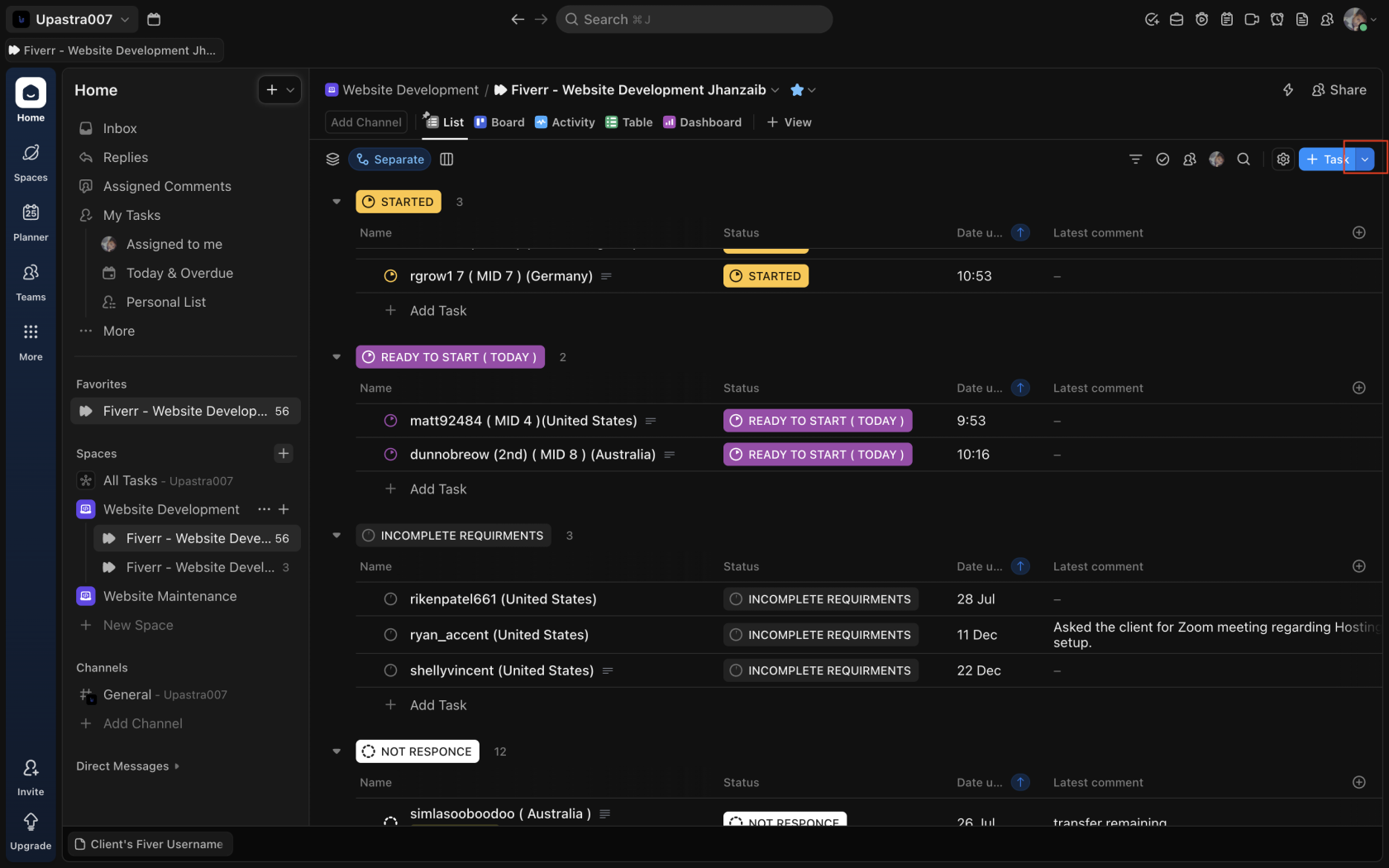
### **🔹 Step 1: Click \+ Task**
* Go to the correct Fiverr Website Development list
* Click **\+ Task** (top-right)
Screenshot: Task button highlighted
[](https://wiki.jehanzaib007.com/uploads/images/gallery/2025-12/Orz4WUTpHodeHwTO-open.png)
---
### **🔹 Step 2: Select the Approved Task Template**
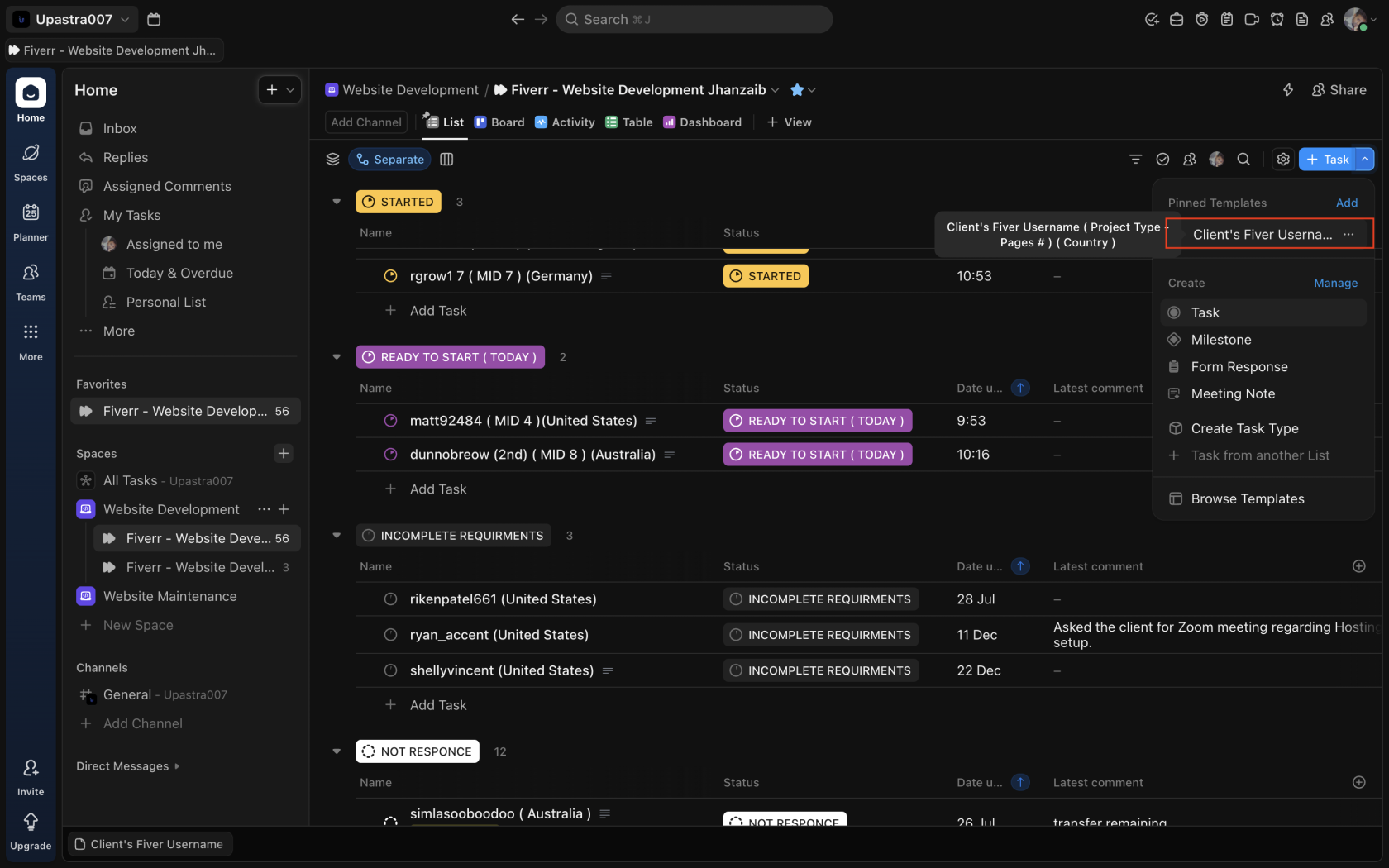
* From **Pinned Templates**, select:
**Client's Fiverr Username ( Project Type – Pages \# ) ( Country )**
* Do NOT create a blank task
Screenshot: Template selection dropdown
[](https://wiki.jehanzaib007.com/uploads/images/gallery/2025-12/HJgcrt7ahWI8Dpfp-selelct.png)
---
### **🔹 Step 3: Open the Newly Created Task**
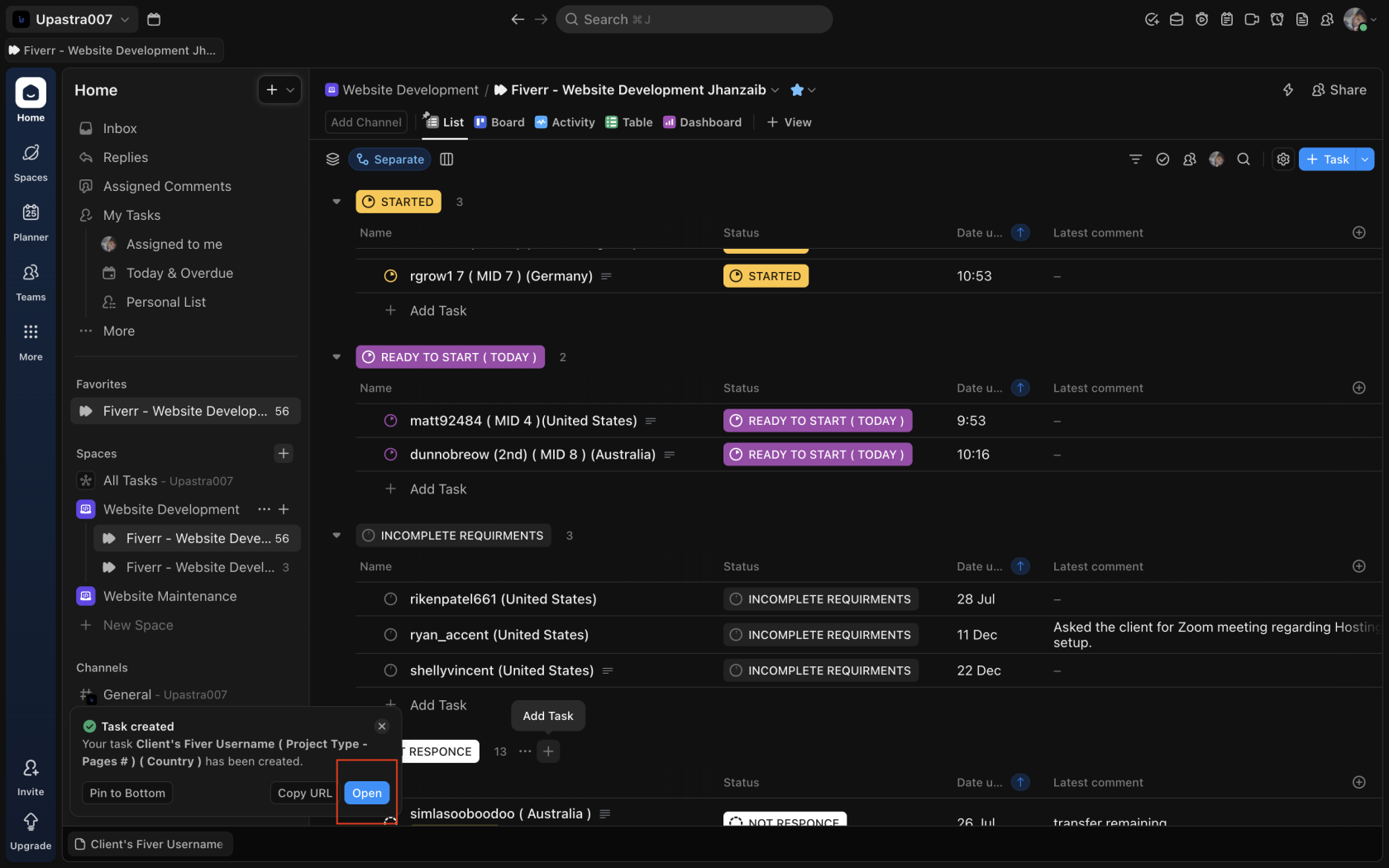
* Once the task is created, click **Open**
* You must complete all required fields before moving the status
Screenshot: Open task button
[](https://wiki.jehanzaib007.com/uploads/images/gallery/2025-12/UA8Elg5pZ9Ga2KFH-start.png)
---
### **🔹 Step 4: Rename the Task (Mandatory)**
Rename the task using this exact format:
Client’s Fiverr Username ( Project Type – Pages \# ) ( Country )
Example:
johnsmith123 ( Project Type **( Need to be Added by Project Manager )** – 5 Pages) (United States)
Screenshot: Task title edit
[](https://wiki.jehanzaib007.com/uploads/images/gallery/2025-12/dagaLMckdqUP1i9m-client-name.png)
---
### **🔹 Step 5: Add Google Drive Link**
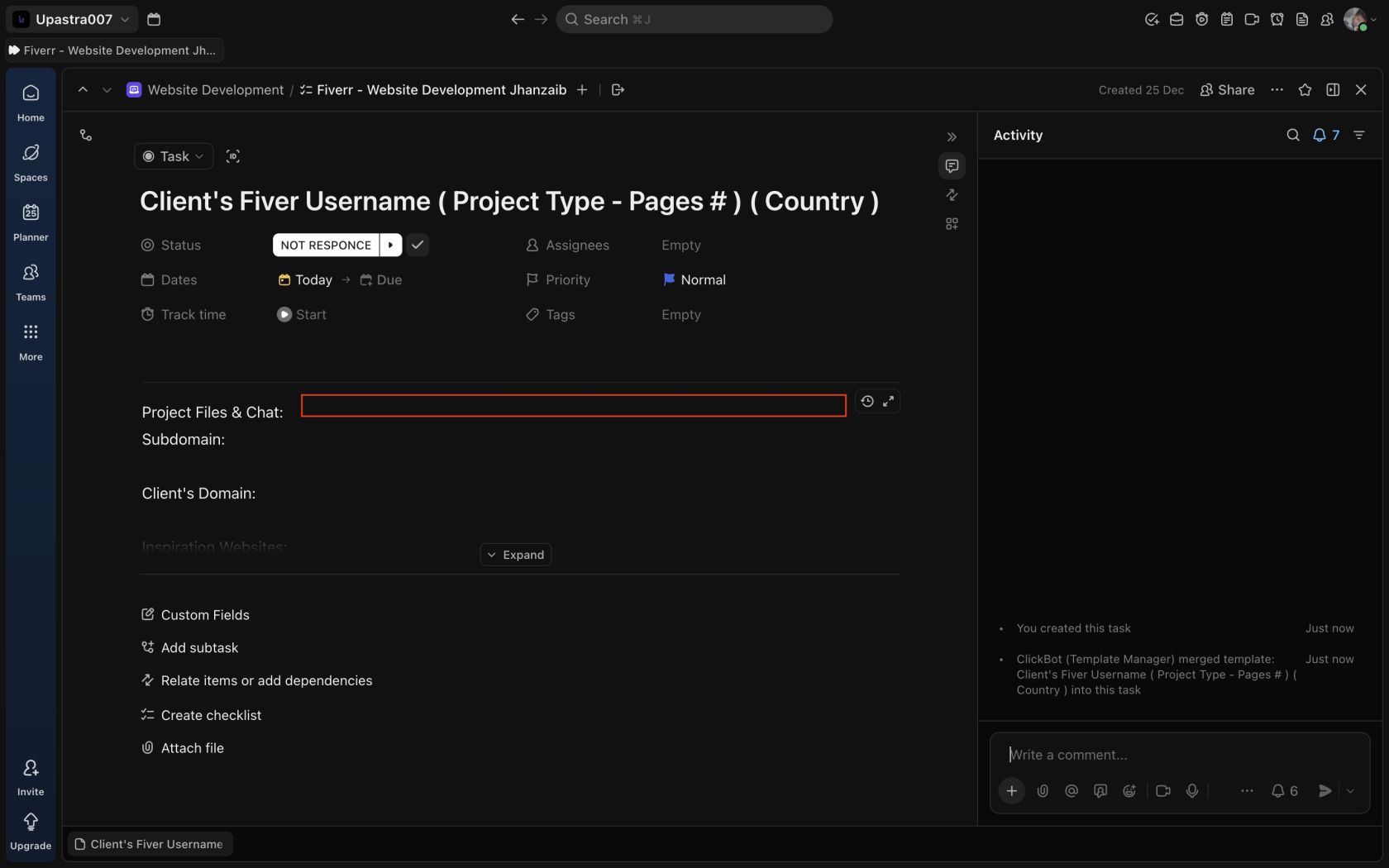
Under **Project Files & Chat**:
* Paste the main Google Drive folder link
This folder is the single source of truth for:
* Assets
* Credentials
* References
🚫 No Drive link \= task is NOT started
Screenshot: Drive link field
[](https://wiki.jehanzaib007.com/uploads/images/gallery/2025-12/MKwGWNDcII16Ttdy-chat.png)
---
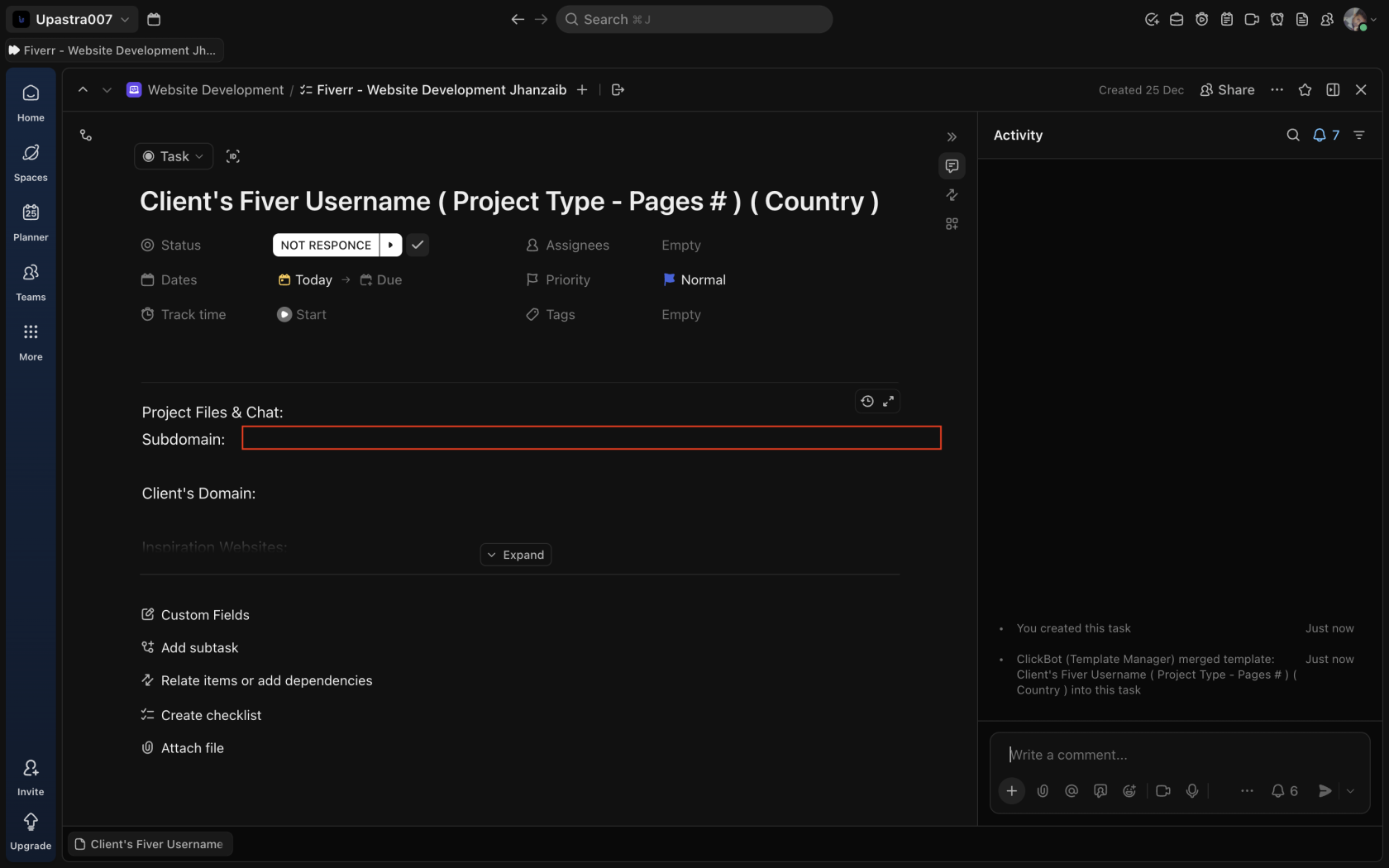
### **🔹 Step 6: Add Subdomain**
Under **Subdomain**:
* Add the development subdomain once created
Example:
clientname.jehanzaib007.com
Screenshot: Subdomain field
[](https://wiki.jehanzaib007.com/uploads/images/gallery/2025-12/imw6BbTKykxCAT3k-subdomain.png)
---
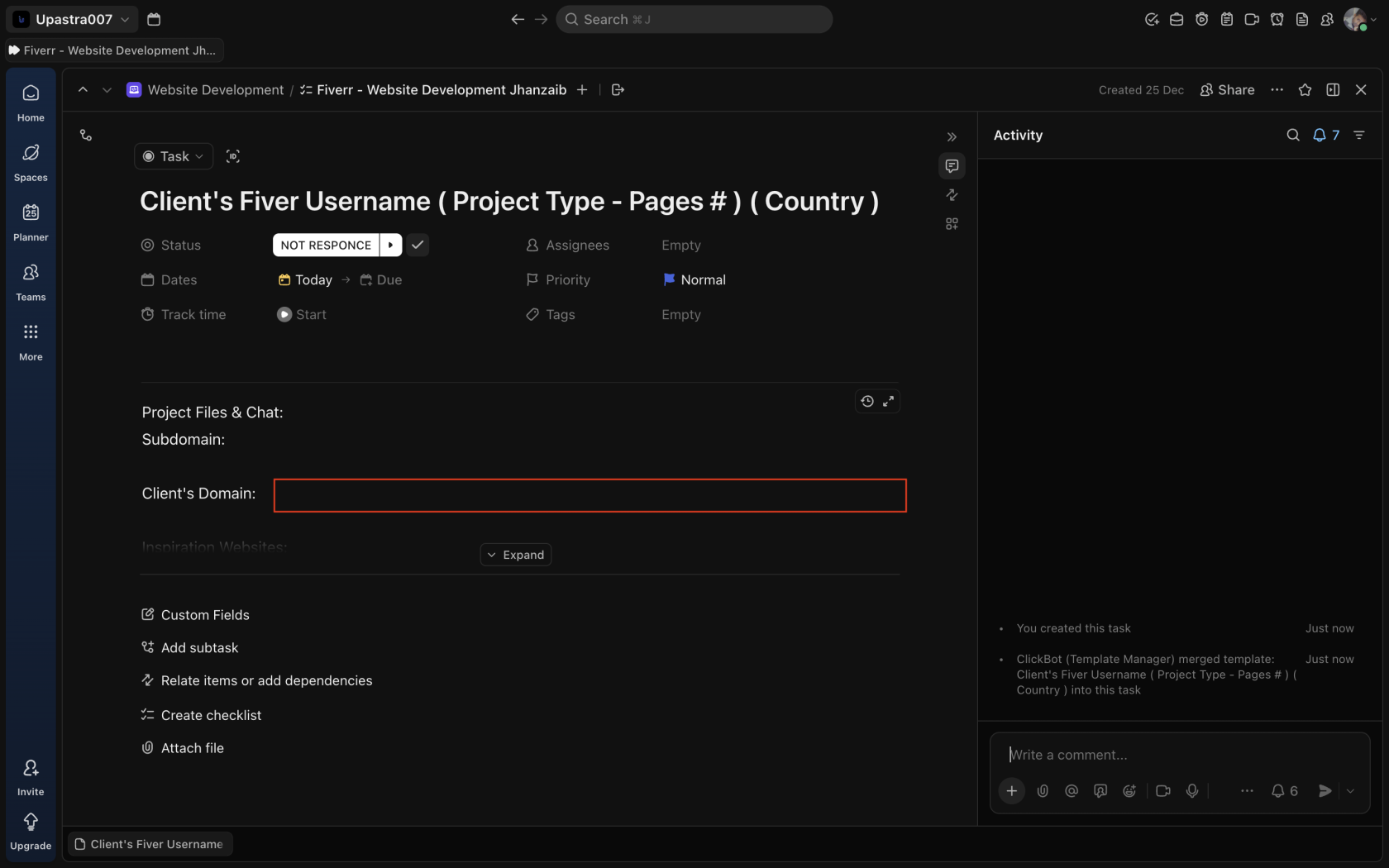
### **🔹 Step 7: Add Client’s Final Domain**
Under **Client’s Domain**:
* Add the live domain on which we will transfer the website once the project scope is completed or client approves the transfer if client already has any active website on the domain.
Screenshot: Client domain field
[](https://wiki.jehanzaib007.com/uploads/images/gallery/2025-12/8OkT5TMlZ0OTyTde-clients-domain.png)
---
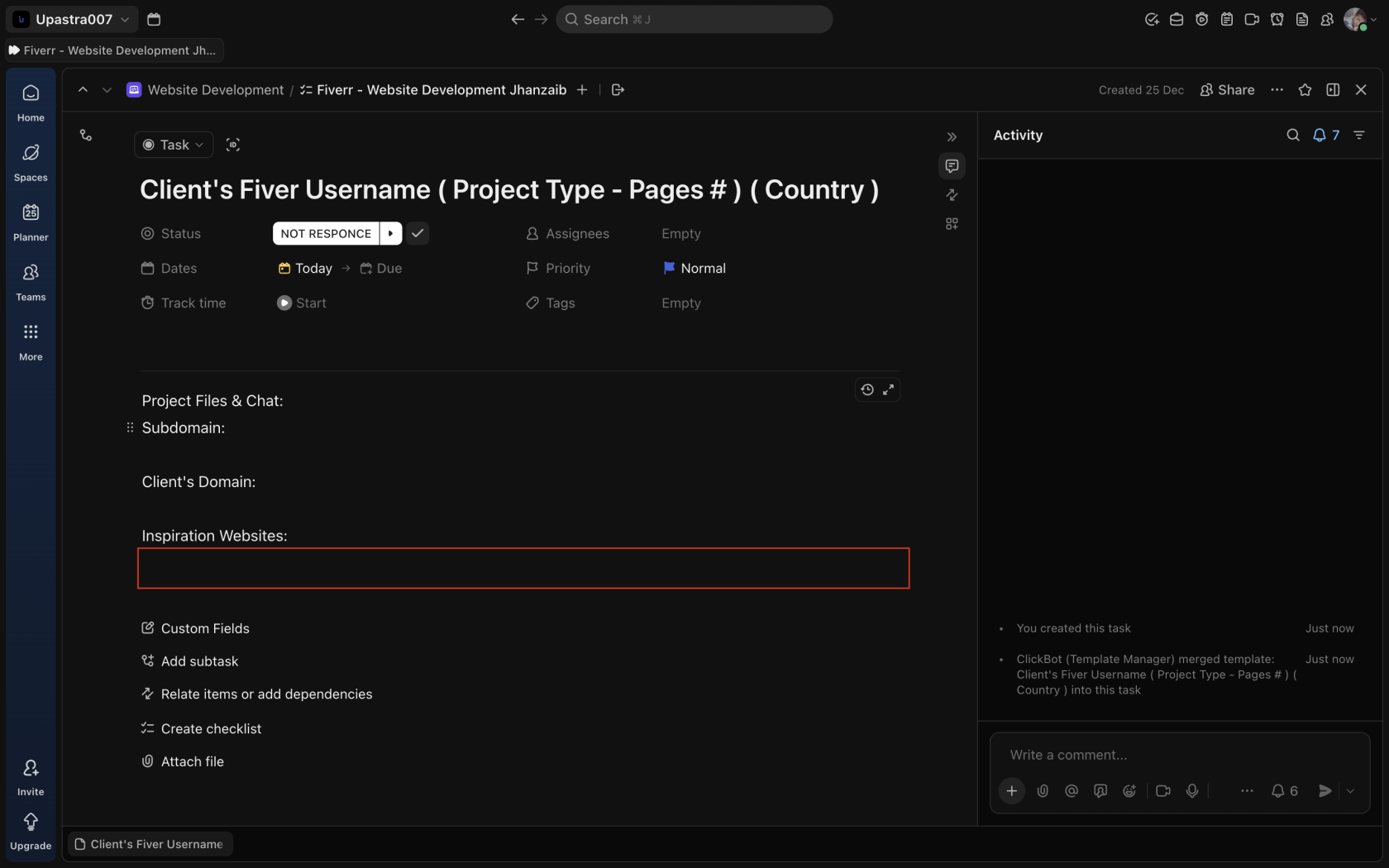
### **🔹 Step 8: Add Inspiration Websites & Notes**
Under **Inspiration Websites**:
* Paste all reference links shared by the client
* Add short notes if required (layout, colors, structure)
Keep it short and clear.
Screenshot: Inspiration websites field
[](https://wiki.jehanzaib007.com/uploads/images/gallery/2025-12/QuUIdGF6oGb5ZpJr-inspiration.png)
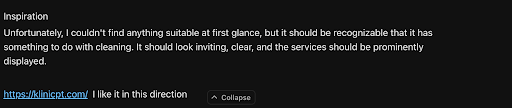
Like This as well: Any notes based on the inspiration given by the client.
[](https://wiki.jehanzaib007.com/uploads/images/gallery/2025-12/WXOMGViAxSVVGB5u-notes-for-inpiration.png)
---
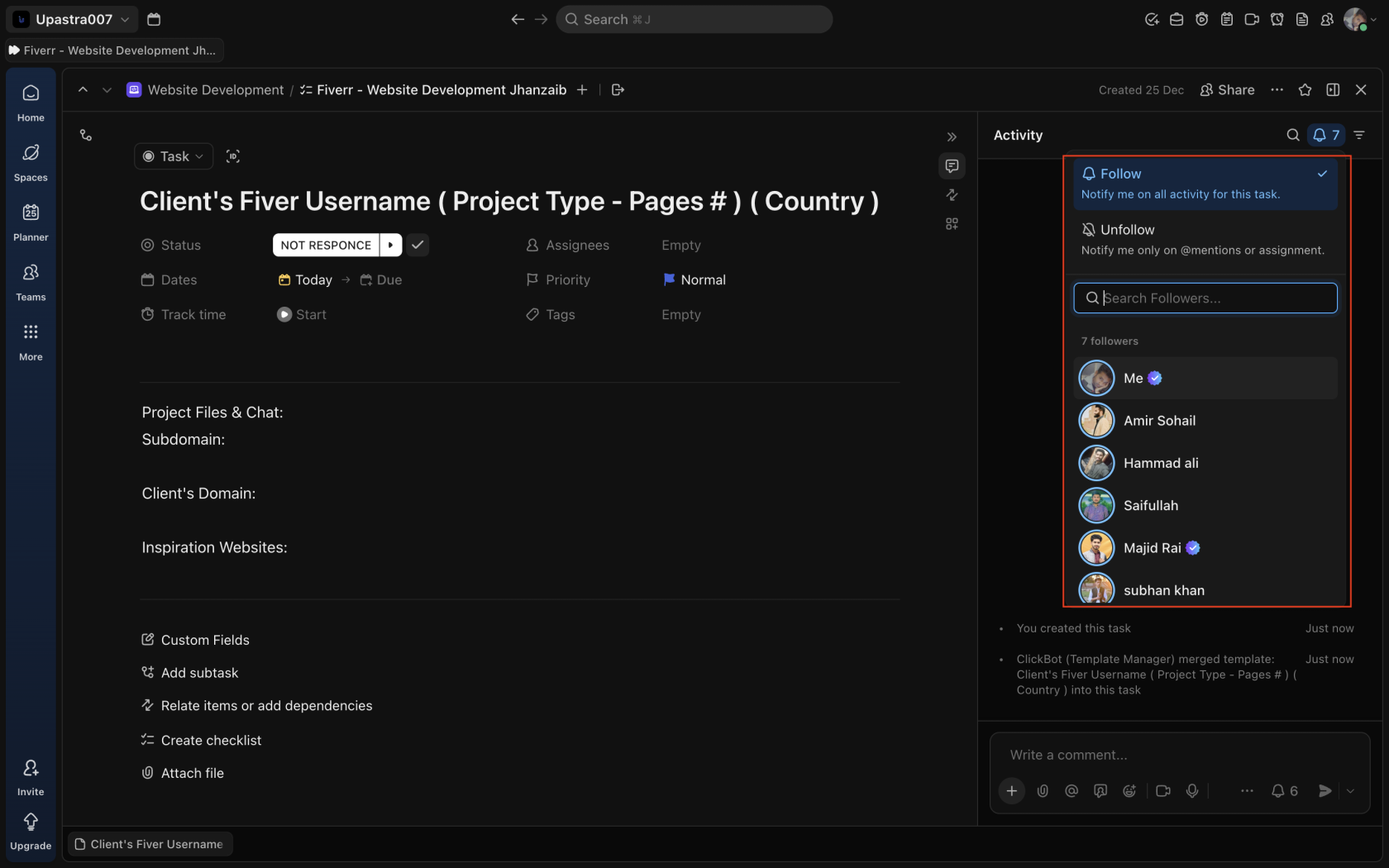
### **🔹 Step 9: Verify Watchers**
* Open **Followers / Watchers**
* Confirm core team members are already added by template
* Do NOT remove watchers
Screenshot: Watchers panel : **It has all of the Managers Admin And Project Completion, Closer Members.**
[](https://wiki.jehanzaib007.com/uploads/images/gallery/2025-12/KVBSf7JTinh3e0dH-watchers.png)
---
### **🔹 Step 10: Update Task Status**
* Only after all above fields are filled
* Move task to the appropriate next status (e.g. **Under Review** )
Screenshot: Status changed to Under Review
[](https://wiki.jehanzaib007.com/uploads/images/gallery/2025-12/LHUTZBYMvG8rT4I2-under-review.png)
---
## **🔍 Quality Check (Before Moving Status)**
Before changing the task status from **Not Response / Ready to Start**:
Ensure ALL are filled:
* Correct task title
* Drive link added
* Subdomain (if created)
* Client domain (if available)
* Inspiration links (if shared)
---
## **🟡 Why it Matters**
**If any required field is missing, the task is considered INCOMPLETE — even if work has started.**
This SOP exists to protect speed, clarity, and quality. Follow it strictly.
# How to Upload Project Changes | Step-by-Step SOP for Smooth Updates
### **Purpose**
This SOP explains the exact process to follow when a client sends new changes or revision requests. It ensures that all updates are correctly saved, organized, uploaded, and communicated in ClickUp for tracking and quality assurance.
---
## **Step-by-Step Procedure**
### **Step 1: Identify the Client’s Changes**
1. When the client sends new changes (via chat, document, or ClickUp comment), review them carefully.
2. Go to the client’s project in **ClickUp** or the assigned workspace.
3. Check under the “**New Changes**” or “**Revisions**” section to confirm the update request.
4. Make sure you clearly understand what the client wants before proceeding.
---
### **Step 2: Copy the Project Name**
1. Copy the **exact project name** mentioned in ClickUp or the client message.
2. Use the search bar in ClickUp to find that specific project.
3. Open the correct task or folder where you’ll be uploading the new changes.
---
### **Step 3: Create a “Changes” Folder**
1. Inside the main project folder (usually on Google Drive or internal storage),
create a new subfolder named according to the update version, for example:
- **Changes 1**
- **Changes 2**
- **Changes 3**, etc.
2. This helps keep each round of revisions organized and traceable.
---
### **Step 4: Save All Provided Data**
1. Download or save all files, images, text, or videos that the client shared for the new changes.
2. Store them inside the newly created **Changes folder**.
3. Double-check that all files are saved correctly and not corrupted.
---
### **Step 5: Apply the Client’s Changes**
1. Open the latest working draft of the project (for example, a website or design file).
2. Apply the changes exactly as instructed by the client.
3. Cross-check the result to ensure all points are covered.
4. Save your work once all updates are complete.
---
### **Step 6: Upload the Updated Version**
1. Upload the revised version to the proper location (e.g., project drive or staging link).
2. Name the folder or link clearly, such as:
- **ClientName – Changes 2**
- **Website Draft – Round 1 Updates**
3. If applicable, take **screenshots** of the updated sections for reference.
---
### **Step 7: Update ClickUp**
1. Go back to the **ClickUp task** related to this project.
2. Post a new comment mentioning:
- “New changes have been uploaded.”
- Include the updated folder link or staging link.
Example:
> “Hi \[Team/Client\], the new changes have been uploaded in the Drive folder: \[Insert Link\]. Please review.”
3. Change the task status to **‘Uploaded Changes’** or **‘Ready for Review’**.
---
### **Step 8: Verify and Notify**
1. Double-check that everything is properly uploaded and visible in the Drive or platform.
2. Notify your senior or project manager that the changes have been uploaded.
3. If any step is unclear or an issue arises, contact your senior immediately for clarification.
---
### **Step 9: Maintain Version History**
1. Keep a record of every version and date uploaded.
2. Example folder structure:
- Changes 1 → Uploaded on 25 Oct 2025
- Changes 2 → Uploaded on 1 Nov 2025
3. This helps track project progress and client revisions efficiently.
---
### **Final Note**
Always follow this SOP for every change round.
If you’re unsure about any client instruction, do **not** upload incomplete or unclear work—consult your **senior** first.
Maintaining clarity and organized documentation avoids confusion in later revisions.
# How to Properly Update Past Client Changes - Documentation Issue
# Project Status: How to Update and Maintain
# Fiverr Delivery Message SOP (Full-Proof)
#### **🎯 CORE RULE (NON-NEGOTIABLE)**
> **A delivery is COMPLETE when the agreed scope is finished and proof is shared. Revisions, transfers, logins, hosting, or silence from the client do not make a delivery incomplete.**
**Never imply incompletion in wording. Ever.**
---
#### **🚫 FORBIDDEN WORDS (AUTO-FLAG RISK)**
Never use in delivery or follow-ups:
- draft
- preliminary
- phase 1
- not final
- pending
- once finalized
- remaining work
- waiting on client
---
#### **✅ APPROVED WORDING**
Always use:
- completed as per the agreed scope
- implemented
- ready for review
- revisions included
- available for assistance
---
#### **📦 DELIVERY SCENARIOS & EXACT MESSAGES**
---
#### **🟢 SCENARIO 1**
### **Final Delivery (Client approved, no changes expected)**
**When to use**
- Client reviewed everything
- Client said “you can deliver”
- Site is final/live
**Delivery Message**
```
Hello,
I’m pleased to inform you that your order has been completed as per the agreed scope. Thank you for trusting me with your project.
Here is the website link :
Once you accept the final delivery, you’ll be prompted to leave a review. It will only take a moment, and I would truly appreciate your feedback.
If you have any questions or require any additional adjustments, please feel free to reach out through our Fiverr chat.
Best regards,
Jehan Zaib
```
---
#### **🟡 SCENARIO 2**
##### **First Scope Delivery (Initial version, expecting revisions)**
**When to use**
- Scope is complete
- First delivery
- Feedback expected
**Delivery Message**
```
The website has been completed in accordance with the agreed scope and is now ready for your review.
Website / Preview Link:
[URL]
Please review the website and let me know if there are any revisions included in your package. You may place the order in revision and share the details, and I will take care of the updates.
If everything looks good, you may proceed with accepting the delivery. Once accepted, you’ll be prompted to leave a review. It will only take a moment, and It really helps us freelancers to grow on the platform.
I’m available if you need any assistance.
```
---
#### **🔵 SCENARIO 3**
##### **Client has NO domain / NO hosting**
**When to use**
- Domain/hosting is client responsibility
- Site built on your subdomain
**Delivery Message**
```
The website has been completed as per the agreed scope in the order and is ready for review.
Since the domain and hosting are not yet available, I’ve shared a preview link.
Preview link:
Please review the website and let me know if there are any revisions included in your order. You can submit them via the revision request, and I’ll take care of the updates.
Once you’re ready, you can also share the domain and hosting access, and I’ll transfer the website for you.
```
---
#### **🟣 SCENARIO 4**
##### **Client has EXISTING website and doesn’t want overwrite yet**
**When to use**
- Live site exists
- Preview/staging used
**Delivery Message**
```
The website has been completed as per the agreed scope of our order and is ready for review.
Since your domain currently has an active website, I’ve shared a preview link so you can review everything before going live.
Preview link:
Please review and share any revisions included in your order. Once you’re satisfied, I can proceed with replacing the existing website on your domain.
Please note: once approved, the new website will replace the existing website currently live on your domain.
```
---
#### **🟤 SCENARIO 5**
#### **Transfer didn’t happen → Backup files provided**
**When to use**
- Transfer blocked
- Client inactive
- Backup delivery allowed
**Delivery Message**
```
Hi {username},
Just a quick update regarding your website.
The project was completed earlier and, as there hasn’t been any recent activity, the temporary preview has been archived. A full backup has been securely saved, so the website can be deployed or transferred anytime whenever you’re ready.
If you’d like to proceed or need any assistance, feel free to reach out — I’ll be happy to help.
```
⚠️ Never include usernames/passwords.
---
#### **⚪ SCENARIO 6**
##### **Auto-Completed Order (Client silent)**
**When to use**
- Fiverr auto-completed
- Courtesy follow-up only
**Message**
```
Hello {username}...,
Just a quick note to let you know the order has been auto-completed by Fiverr.
If you’d like any revisions included in your order or need help with anything related to the website, feel free to reach out anytime.
```
---
#### **🟠 SCENARIO 7**
##### **Client returns after months**
**Message**
```
No problem at all — I’ve already archived the website and have a full backup ready.
Once you’re ready, I can either transfer and deploy it for you or share the backup files so you can set it up yourself. Let me know how you’d like to proceed.
```
---
#### **🔁 REVISIONS DELIVERY RULE**
- Deliver **once** when scope is complete
- Handle revisions **inside the order**
- Do NOT re-deliver unless files changed
- Before final re-delivery, ask:
```
Please confirm if there are any further changes needed so I can proceed accordingly.
```
---
#### **🔒 SECURITY RULES (MANDATORY)**
Never:
- Share passwords in delivery
- Upload sensitive credentials
- Treat Fiverr as backup storage
Always:
- Ask client to share access **only if they want you to transfer**
- Keep backups on your own storage
---
#### **🧠 ADDITIONAL SCENARIOS YOU MAY FACE (Handled by SOP)**
✔ Third-party tools (Fillout, Calendly, GA, Stripe)
→ Feature delivered + temporary setup = complete delivery
✔ Large sites (files too big)
→ Preview + screenshots = valid proof
✔ Client delays content
→ Extend delivery, don’t deliver
✔ Client disappears forever
→ Archive + backup = protected
---
##### **🏁 GOLDEN RULE (PIN THIS)**
> **Deliver when scope is complete.**
> **Proof matters more than perfection.**
> **Language matters more than intention.**
---
#### **Final reassurance**
This SOP:
- Matches Fiverr support’s written guidance
- Covers **all real-world edge cases**
- Protects Top Rated status
- Scales cleanly for teams
You can now operate **without fear of wording-based warnings**.
---
Just tell me what you want to lock next.
# Revisions SOP
#### **🎯 CORE RULE (NON-NEGOTIABLE)**
> **Access collection is a client responsibility. The absence or delay of logins does NOT block delivery if the agreed scope is completed.**
**Never delay delivery due to missing logins if the scope is otherwise complete.**
---
#### **🔒 SECURITY FIRST (MANDATORY)**
- Never request passwords outside Fiverr chat
- Never store client credentials in plain text documents
- Never include credentials in delivery messages
- Access is requested **only when required**
---
#### **📥 REQUIRED LOGINS (STANDARD)**
- Domain registrar (GoDaddy, Namecheap, etc.)
- Hosting provider (cPanel / Hosting dashboard)
- WordPress admin (if existing site)
---
#### **🟢 SCENARIO 1**
### **Requesting Logins After Order Starts**
**When to use**
- Order has started
- Client has domain/hosting
**Message**
```
To proceed smoothly, please share the following access details when convenient:
• Domain registrar login
• Hosting login
• WordPress admin login (if available)
You can share these securely here on Fiverr chat.
```
---
#### **🟡 SCENARIO 2**
##### **Client Has NOT Shared Logins Yet**
**Message**
```
Just a quick follow-up to check if you’ve had a chance to share the domain and hosting access.
No rush at all — once available, I’ll take care of the setup accordingly.
```
---
#### **🔵 SCENARIO 3**
##### **Client Is Unsure How to Share Logins**
**Message**
```
No worries at all.
If it helps, you can create a temporary admin user or share the hosting login directly. Either option works, and I’ll handle the rest.
```
---
#### **🟣 SCENARIO 4**
##### **Client Does Not Have Hosting Yet**
**Message**
```
That’s completely fine.
I’ve completed the website on a temporary setup for now. Once you purchase hosting and domain, you can share the access and I’ll transfer everything for you.
```
---
#### **⏱️ FOLLOW-UP INTERVALS (STRICT)**
- Day 2 → Gentle reminder
- Day 5 → Final reminder
- No daily chasing
---
#### **🟤 SCENARIO 5**
##### **Final Login Follow-Up**
**Message**
```
Just a final check-in regarding the access details.
Whenever you’re ready, feel free to share them and I’ll proceed accordingly.
```
---
#### **⚪ SCENARIO 6**
##### **Client Requests a Hosting / Setup Meeting**
**Message**
```
Happy to help.
If you’d like, we can go over the hosting setup together on a quick call. Let me know a suitable time and I’ll arrange it.
```
---
#### **⚫ SCENARIO 7**
##### **Logins Shared After Delivery**
**Message**
```
Thanks for sharing the access.
I’ll take care of the setup and update you once everything is in place.
```
---
#### **🚫 WHAT NOT TO DO**
- Do not block delivery due to missing logins
- Do not repeatedly chase the client
- Do not accept responsibility for delayed access
---
##### **🏁 GOLDEN RULE (PIN THIS)**
> **Logins enable work — they do not define delivery.**
> **Scope completion comes first. Access follows.**
---
#### **Final reassurance**
- Protects delivery status
- Prevents access-related disputes
- Keeps responsibility correctly assigned
- Scales cleanly for teams
# Best Practices and Key Points for Website Transfer and Project Completion
#####
#####
##### Always update project status and tags immediately after website transfer to keep project tracking accurate.
Verify the transferred website in incognito mode immediately to avoid cache and display issues.
Communicate clearly and warmly with clients, confirming if everything is good to go and if any final changes are needed.
Encourage clients politely to provide positive feedback and 5-star reviews by highlighting the good working experience.
Understand that clear communication plays a crucial role alongside quality work in improving client satisfaction and reviews.
Implement these steps consistently to ensure smooth project completion, avoid confusion, and foster strong client relationships.
# SOP – Proper Project Completion & Client Handover
# **🎯 Objective**
Ensure every project is **fully completed, verified, communicated, and closed** in a professional and consistent manner that:
- Avoids confusion
- Prevents missed steps
- Maximizes client satisfaction
- Increases chances of **5-star reviews and referrals**
---
## **🧱 Scope**
Applies to:
- All website development projects
- Fiverr and off-platform clients
- New builds, redesigns, and website transfers
---
## **⚠️ Core Rules (Non-Negotiable)**
- ❌ Never assume a project is complete without verification
- ❌ Never disappear after website transfer
- ❌ Never rush the client for feedback
- ✅ Completion = **Technical + Communication + Client Confirmation**
---
## **🧭 Step-by-Step Project Completion Process**
---
### **🔹 Step 1: Final Website Transfer (If Applicable)**
- Transfer the website to the **client’s live domain**
- Ensure:
- - Correct domain is live
- No subdomain URLs remain
- SSL is active and working📌 Do **not** proceed until transfer is successful.👉 Follow SOP: **How to Transfer a Website**
---
### **🔹 Step 2: Verify Website in Incognito Mode (Mandatory)**
Immediately after transfer:
- Open the website in **Incognito / Private mode**
- Check:
- - Homepage loads correctly
- All pages open
- Forms work properly
- Images load
- Layout looks correct🚫 Do NOT rely on logged-in or cached views.👉 Follow SOP: **How to Check a Website After Transfer**
---
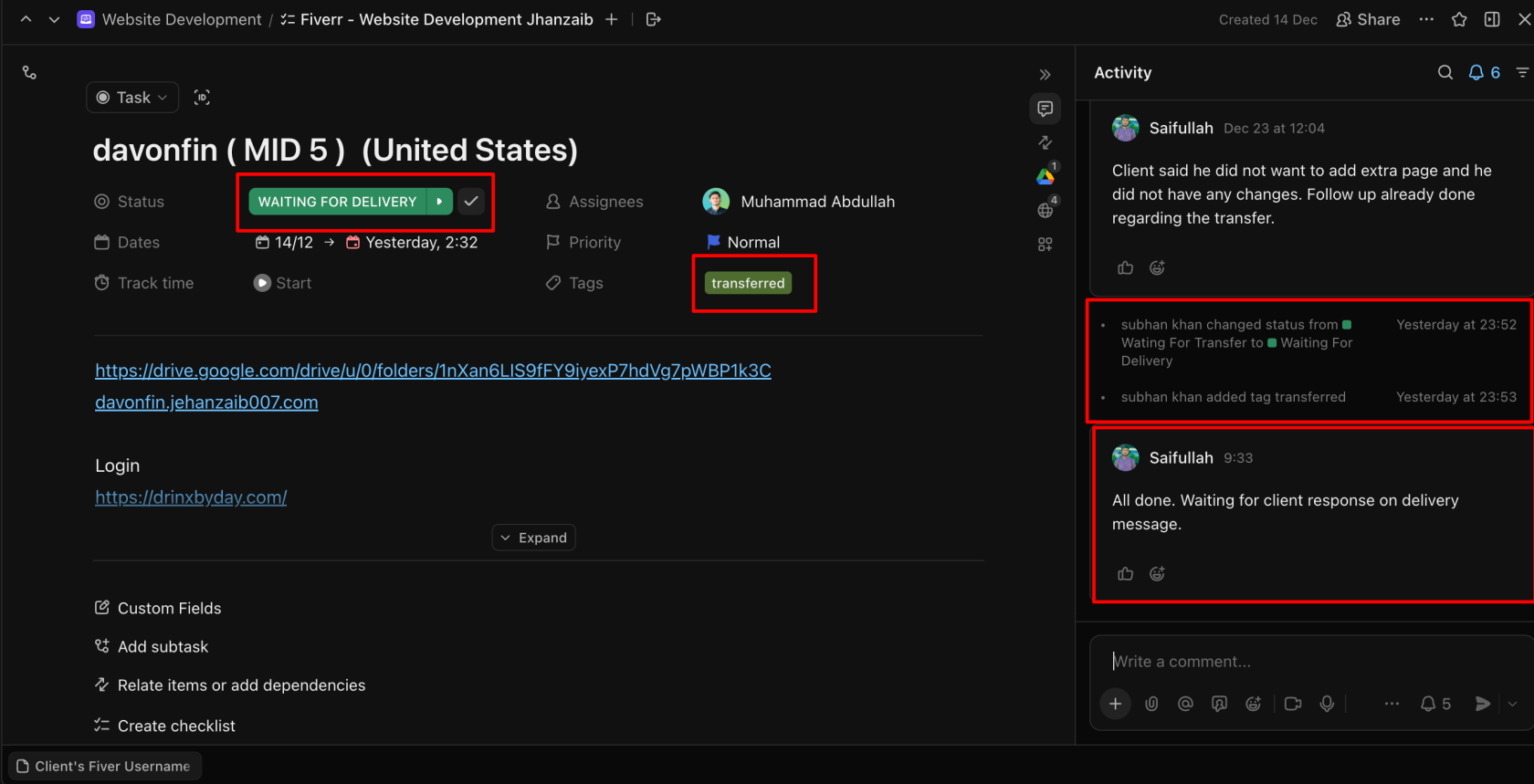
### **🔹 Step 3: Update Project Status & Tags**
In ClickUp / CRM:
- Update project status:Waiting for Transfer → Waiting for Delivery
- Apply tag: Transferred
- Add activity note: Website transferred.📌 Delayed updates = tracking failure.
[](https://wiki.jehanzaib007.com/uploads/images/gallery/2025-12/ep1rY0zr3bi39NzO-image.png)
---
### **🔹 Step 4: Internal Confirmation (Team Alignment)**
Before contacting the client, confirm internally:
- No pending tasks
- No missing assets
- No unresolved client requestsOnly proceed after internal confirmation.
---
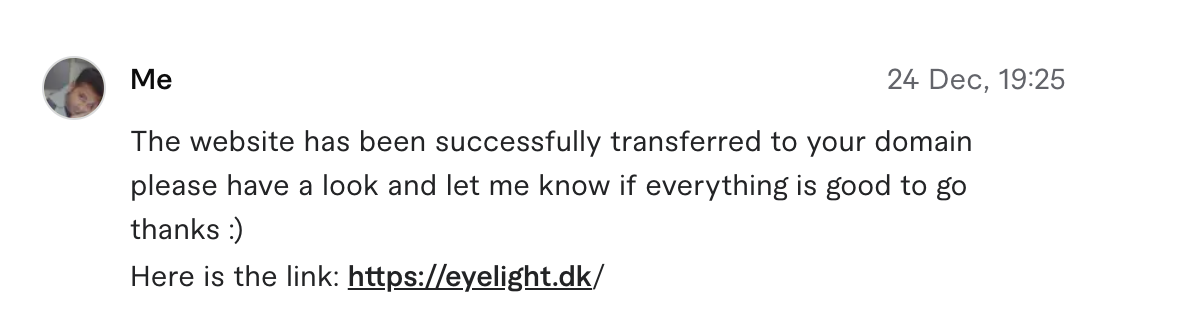
### **🔹 Step 5: Client Confirmation Message (Mandatory)**
Send the saved Fiverr quick message:
**Quick Message Name:**
✅ **Website Transfer Complete**
**Message:**
```
The website has been successfully transferred to your domain.
Please have a look and let me know if everything is good to go.
Here is the link: {CLIENT URL}
```
Tone must be clear, calm, and professional.
[](https://wiki.jehanzaib007.com/uploads/images/gallery/2025-12/hofB5VJFn82Eh6nG-image.png)
---
### **🔹 Step 6: Handle Final Changes (If Any)**
- If the client requests changes:
- - Follow the **Changes SOP**
- Do NOT mix delivery and revision steps
- Track all changes properly
- If no changes are requested → proceed.
---
### **🔹 Step 7: Encourage Feedback & Review (Polite & Natural)**
Once the client confirms satisfaction:
- Deliver the order
- Follow the closing step
- Politely encourage feedback
- Do NOT pressure the client(Use the approved delivery + review request message)
---
### **🔹 Step 8: Close the Project Properly**
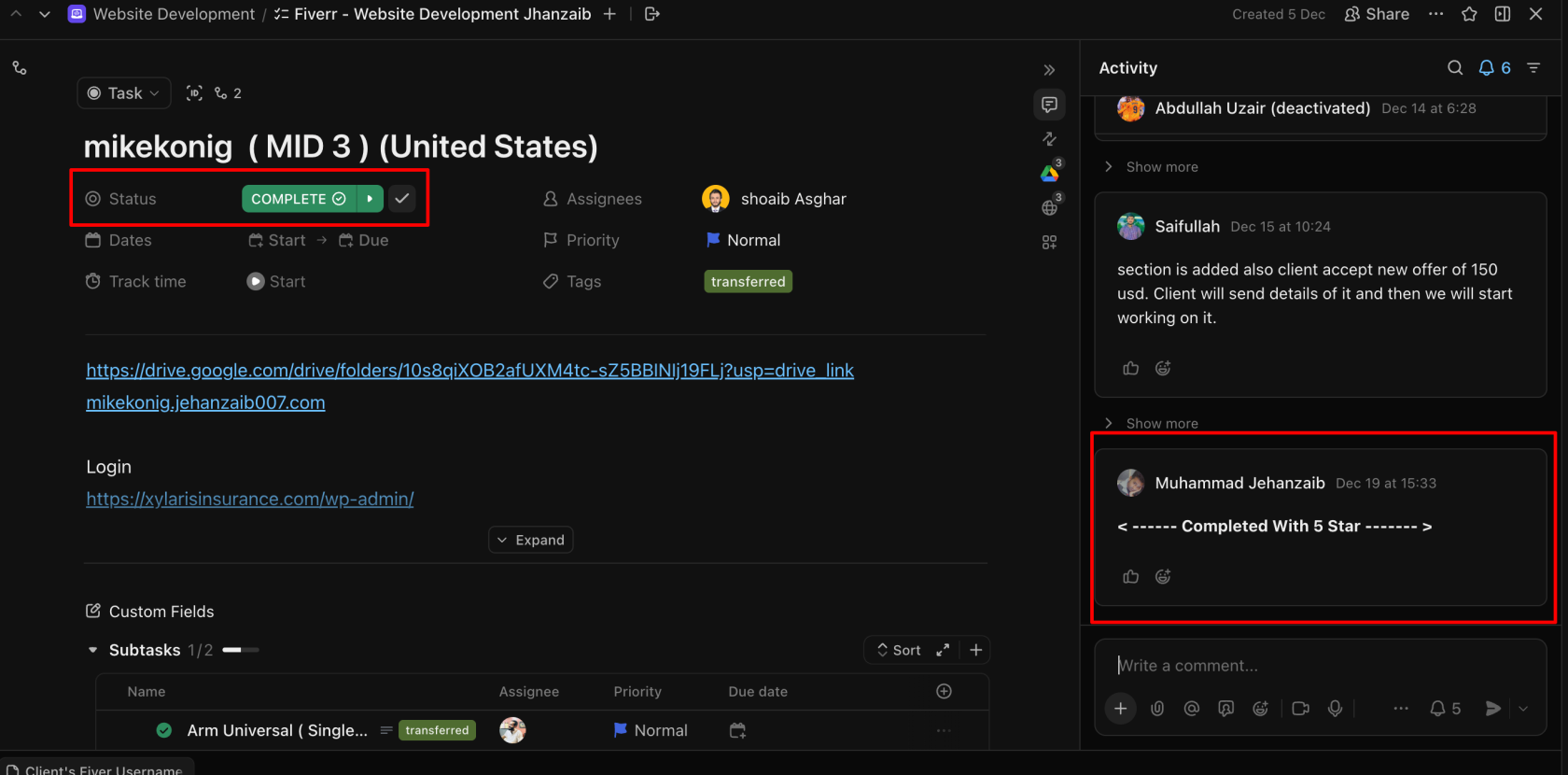
#### **✅ Case 1: Client Leaves a Review**
- Update ClickUp status:
- Delivered → Completed
- Add activity note: <—— Completed With 5 Star ——>
[](https://wiki.jehanzaib007.com/uploads/images/gallery/2025-12/farWYQBA23NmwNDs-image.png)
On Discord:
- - Use command: /5star (or relevant rating command: /4.7, /4.3, etc.)
- Also add the screenshot of the review as well for future refrecnes.
[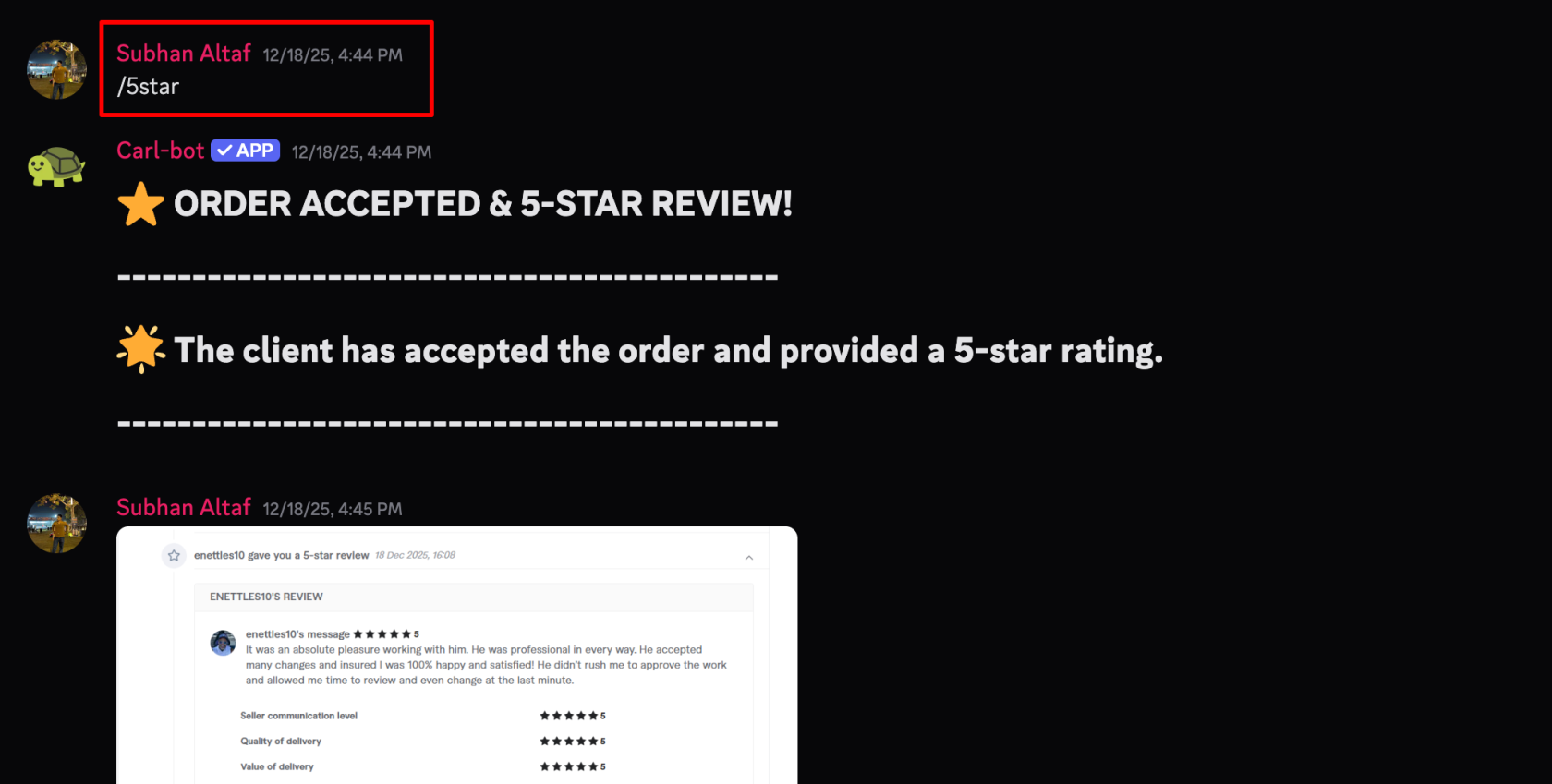](https://wiki.jehanzaib007.com/uploads/images/gallery/2025-12/Q1Y6wwuR3DFEJTAe-image.png)
In CRM:
- Move client to **Past Clients**
- Add tag: Repeat Buyer
[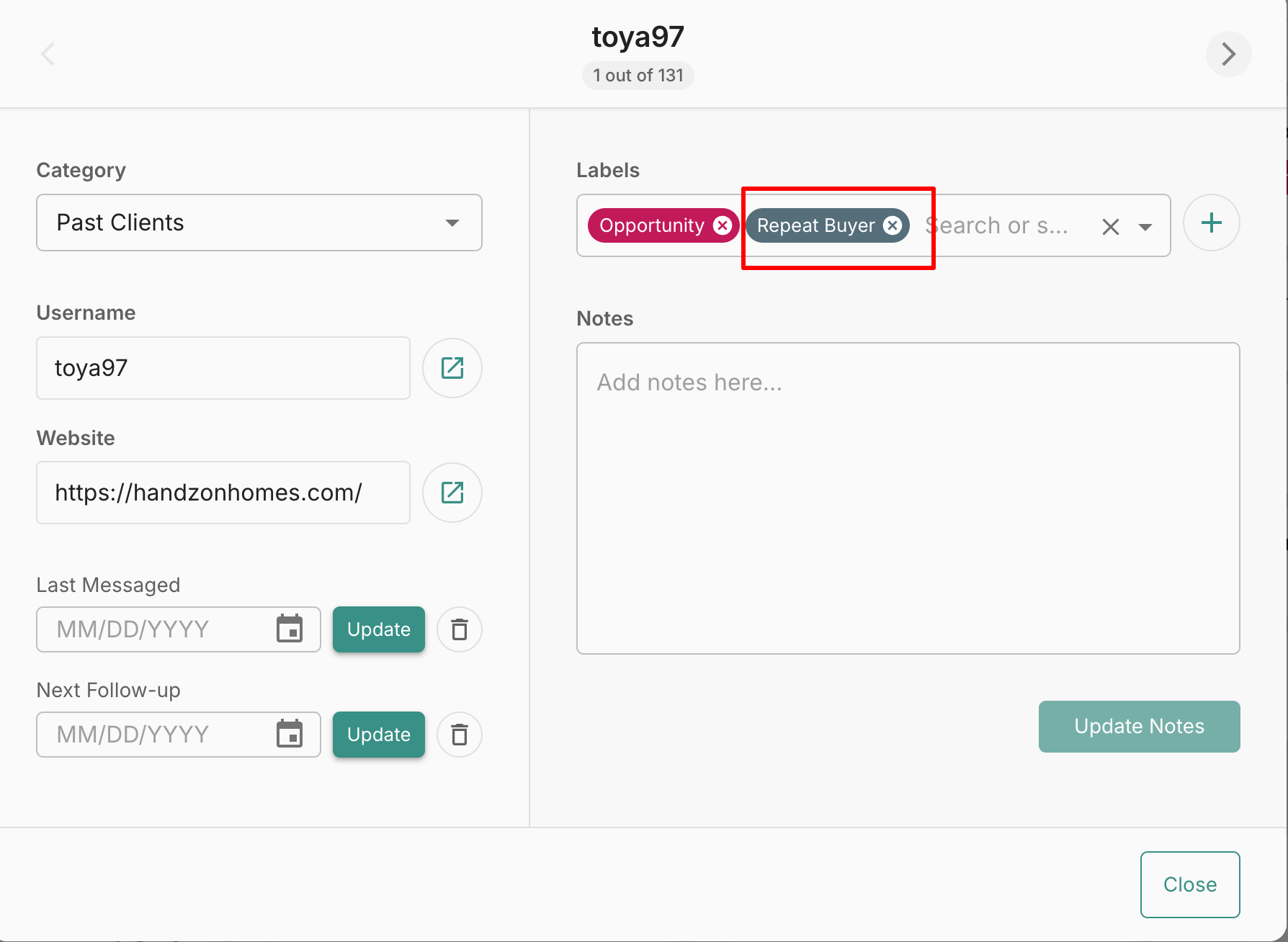](https://wiki.jehanzaib007.com/uploads/images/gallery/2025-12/Eyaf6Y2neJR42GsF-image.png)
---
#### **⚠️ Case 2: Client Does NOT Leave a Review**
- Update ClickUp status:
- Delivered → Completed
- Add tag: Review Left
- Add activity note: <—— Completed by Client (Review Left) ——>
[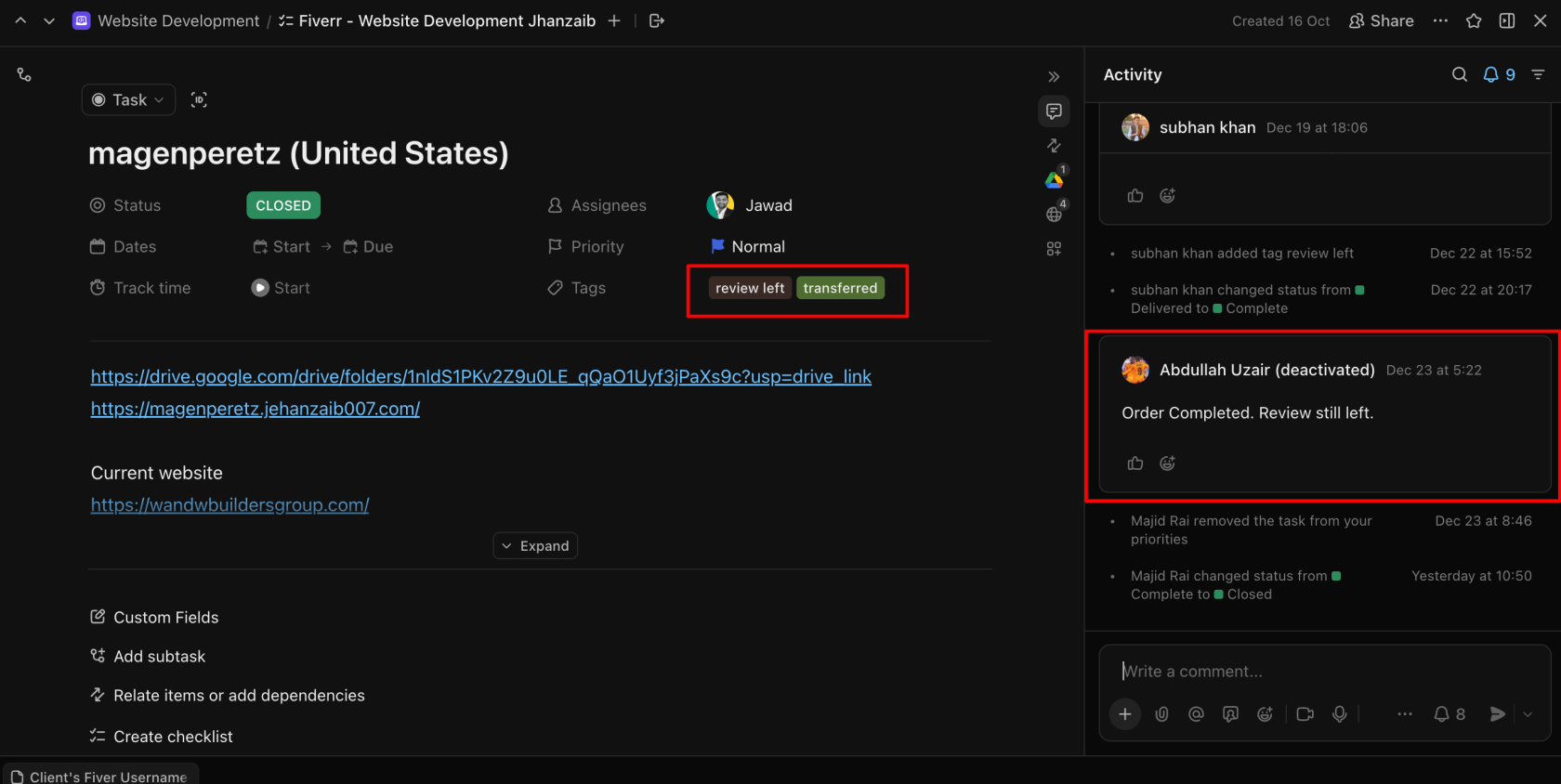](https://wiki.jehanzaib007.com/uploads/images/gallery/2025-12/9b1N1eoCGezmj6F9-image.png)
- On Discord:
- - Use command: /reviewleft
[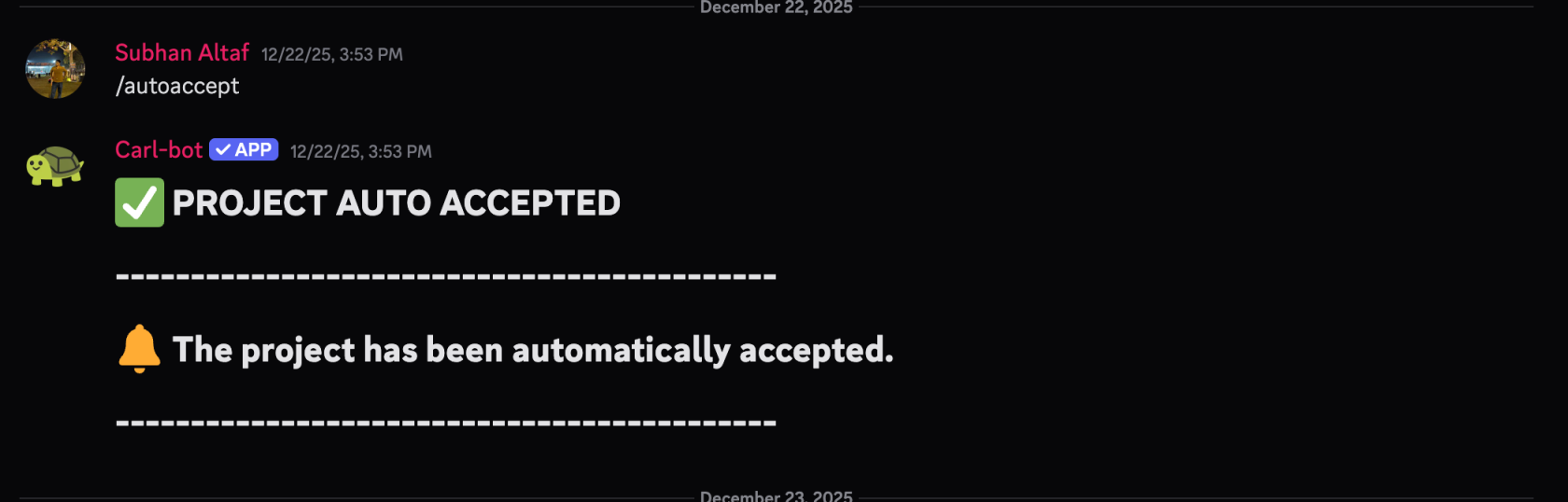](https://wiki.jehanzaib007.com/uploads/images/gallery/2025-12/cmpbZpjx5ewc0WOz-image.png)
- In CRM:
- - Move client to **Review Left** category
[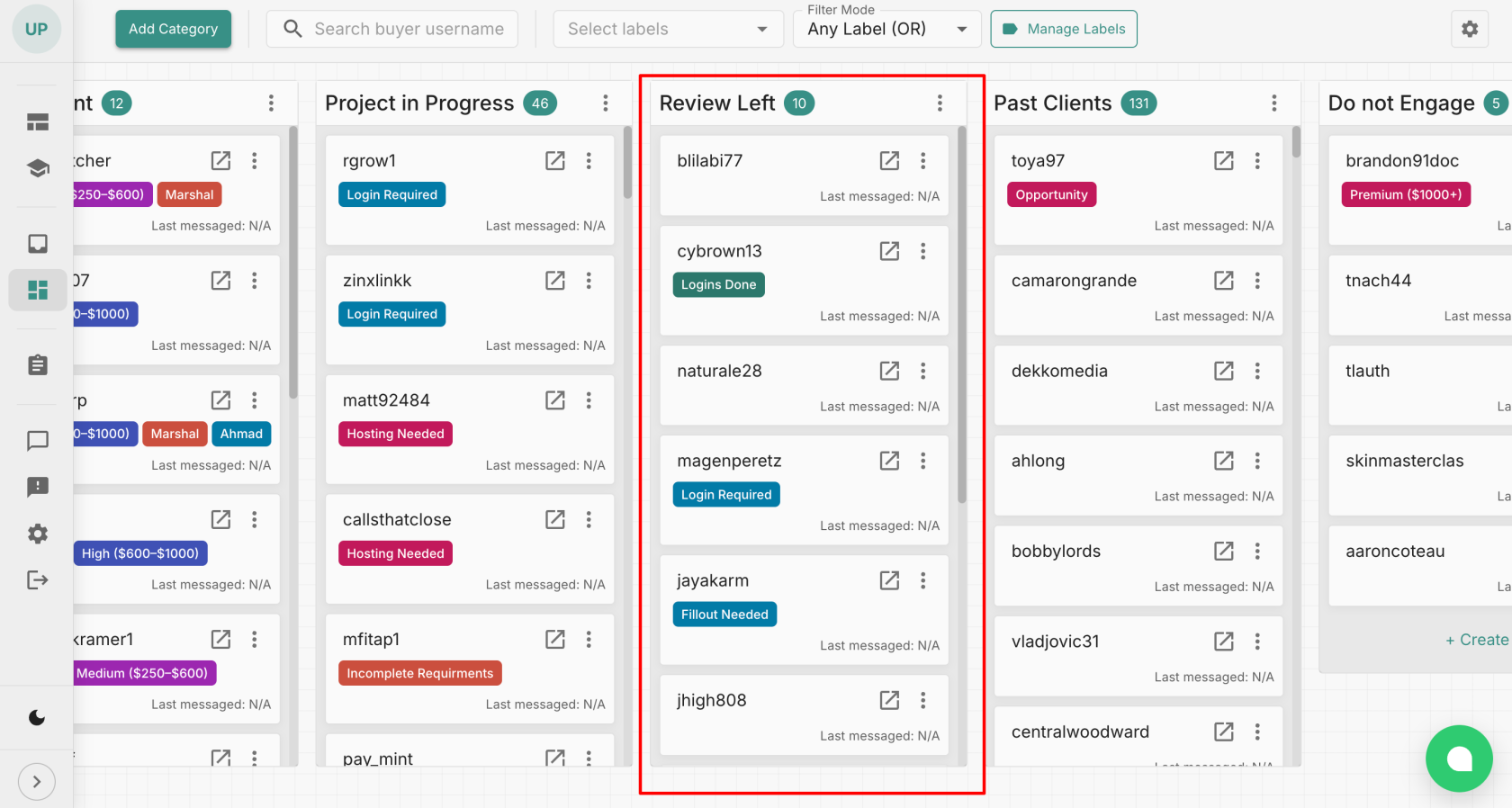](https://wiki.jehanzaib007.com/uploads/images/gallery/2025-12/8WnxmNZ6KIJaETdm-image.png)
- Add **order completion date** in Notes (exact format copied from Fiverr):
[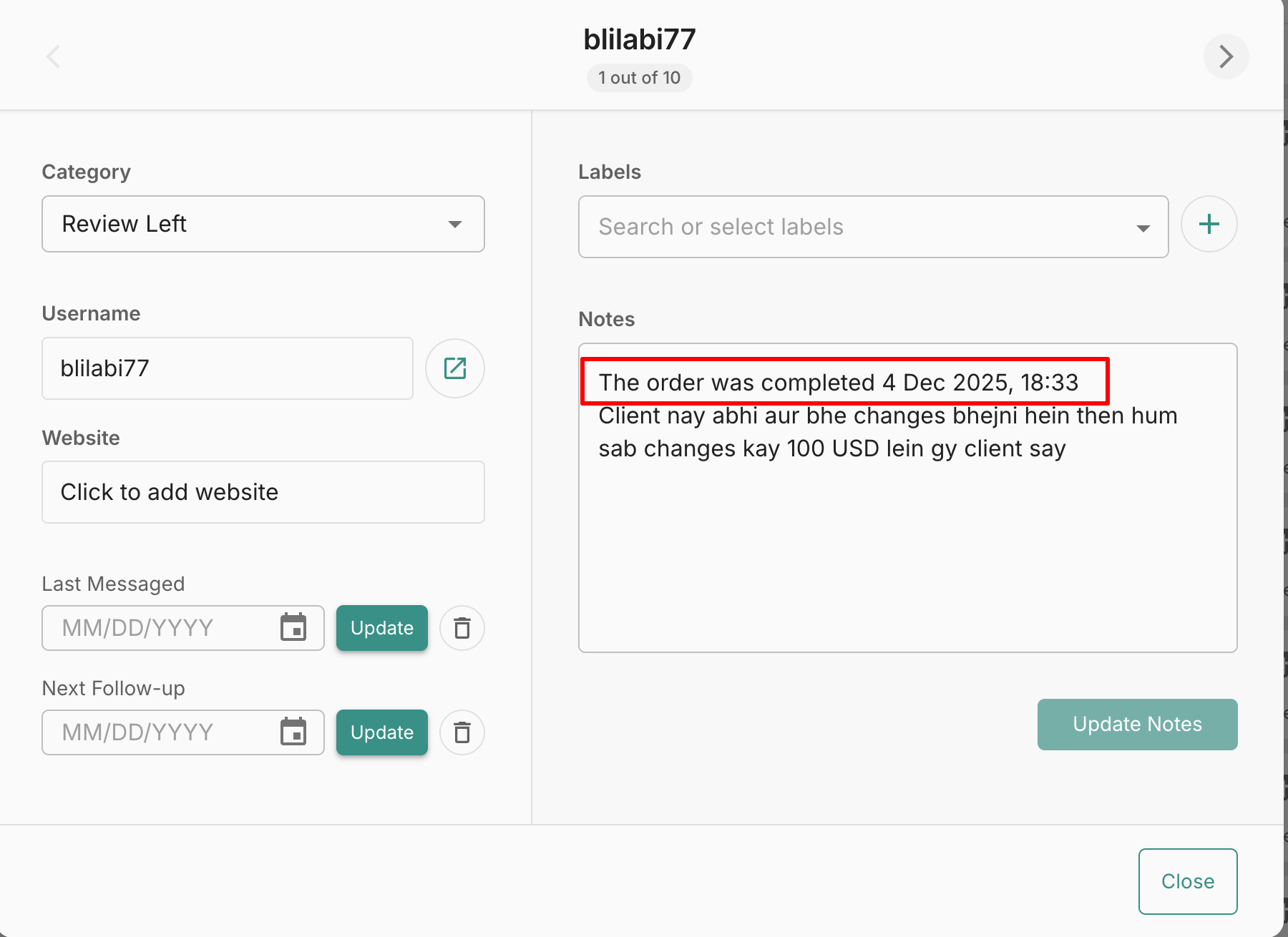](https://wiki.jehanzaib007.com/uploads/images/gallery/2025-12/SKx3LuU38WPahvxV-image.png)
The order was completed 25 Dec 2025, 15:33
[](https://wiki.jehanzaib007.com/uploads/images/gallery/2025-12/bYSlaHJK9v0UuVlg-image.png)
- Client will be followed for **30 days** as per Follow-Up SOP📌 Review tracking must NOT mix with past clients.
---
## **🧠 Key Understanding**
Quality work alone is **not enough**.
**Clear communication + proper verification + respectful closing**
= Happy client + better reviews + repeat business.
---
## **🟡 Golden Rule**
**A project is only complete when the client confirms it — not when we think it is.**
---
# Guide on steps after project automatic completion
1. ##### **Step 1: Send message to client**
*"The order was auto-completed, but no worries! If you need help, you can still message me here anytime. 😊"*
---
##### **Step 2: Update ClickUp status based on project stage**
- ##### Change from **Delivered** to **Complete** if everything is done and the website is transferred.
- ##### Change to **Waiting for Transfer** if website transfer is still pending.
- ##### Change to **Waiting for Changes** if changes are still in progress, specifying the type of changes.
---
##### **Step 3: Add tag "Review Left" to client in ClickUp**
---
##### **Step 4: Add tag "Review Left" to client on Fiverr**
---
##### **Step 5: Update Discord with project automatic completion**
Add tag **"autoaccept"** with status message:
*"DELIVERY ACCEPTED – AWAITING REVIEW*
*The client has accepted the delivery but has not yet provided a review.*
--------------------------------------------"
---
##### **Step 6: Send final message to client**
*"As our website updates are almost complete! Let me know if you have any final tweaks. If all looks good, we can move ahead with the transfer to your domain so you can go live. Excited to get this launched for you!*
##### *Looking forward to your go-ahead."*
# SOP – Client Referral System (Post-Project)
# **🎯 Objective**
Create a **consistent, non-pushy referral system** that maximizes high-quality referrals from satisfied clients after project completion.This SOP ensures referrals are **asked at the right time**, with the **right message**, and **tracked properly**.
---
## **🧱 Scope**
Applies to:
- All completed Fiverr projects
- All direct / off-platform clients
- Website design, redesign, and development services
---
## **🧠 Core Principle**
Referrals work only when **timing, simplicity, and reward** are aligned.Never ask randomly. Never ask emotionally. Always ask systematically.
---
## **⏱️ When to Ask for Referrals (Non-Negotiable)**
Ask for referrals **ONLY when all conditions are met**:
- Project is delivered and accepted
- Client is satisfied (positive feedback or review)
- No pending revisions or complaints🚫 Never ask during revisions or delays.
---
## **🎁 Referral Reward (Standardized)**
Use **one clear reward** only:
- 🎯 **$50–$100 OFF** next service
**OR**
- 🎯 **Free value-based add-on** (speed optimization, SEO setup, extra page)⚠️ No cash payouts unless approved.
---
## **💬 Approved Referral Message (Primary)**
Send immediately after project acceptance:
```
I’m really happy to hear you’re pleased with the website — working with you has been a great experience 😊
I’m glad we could build a solid business relationship together.
Most of our projects come through word-of-mouth, so I wanted to ask —
if you know anyone who’s looking for a new website or a redesign, I’d truly appreciate an introduction.
As a small thank-you, I offer a 10% discount on your next project for every successful referral.
No pressure at all — just sharing this while everything is fresh.
And of course, I’m always here if you need anything.
```
---
## **🔁 Make Referring Easy (Mandatory)**
Always include a **ready-to-forward message**:
```
Hi, I recently worked with Jehan from Fiverr on my website and had a great experience.
The communication was smooth, the work was professional, and the final result turned out really strong.
You can see my website here:
👉 [Client Website Link]
Jehan is a Top Rated Seller on Fiverr, has 6+ years of experience, and has completed 2500+ website projects for clients worldwide.
If you’re looking for a reliable Website Developer for a new website or redesign, you can check him out here:
👉 https://www.fiverr.com/jehanzaib_007/
```
This removes friction and increases referral rate.
---
### **📌 Referral Tracking Procedure (Mandatory)**
When a **new client confirms they were referred**:
1. **Confirm the Source**
2. - Ask clearly: **“Who referred you to us?”**
- Do not assume or guess.
3. **Update CRM Record**
4. - Add the client’s **username** in the CRM
- Apply the label: **Referral**
[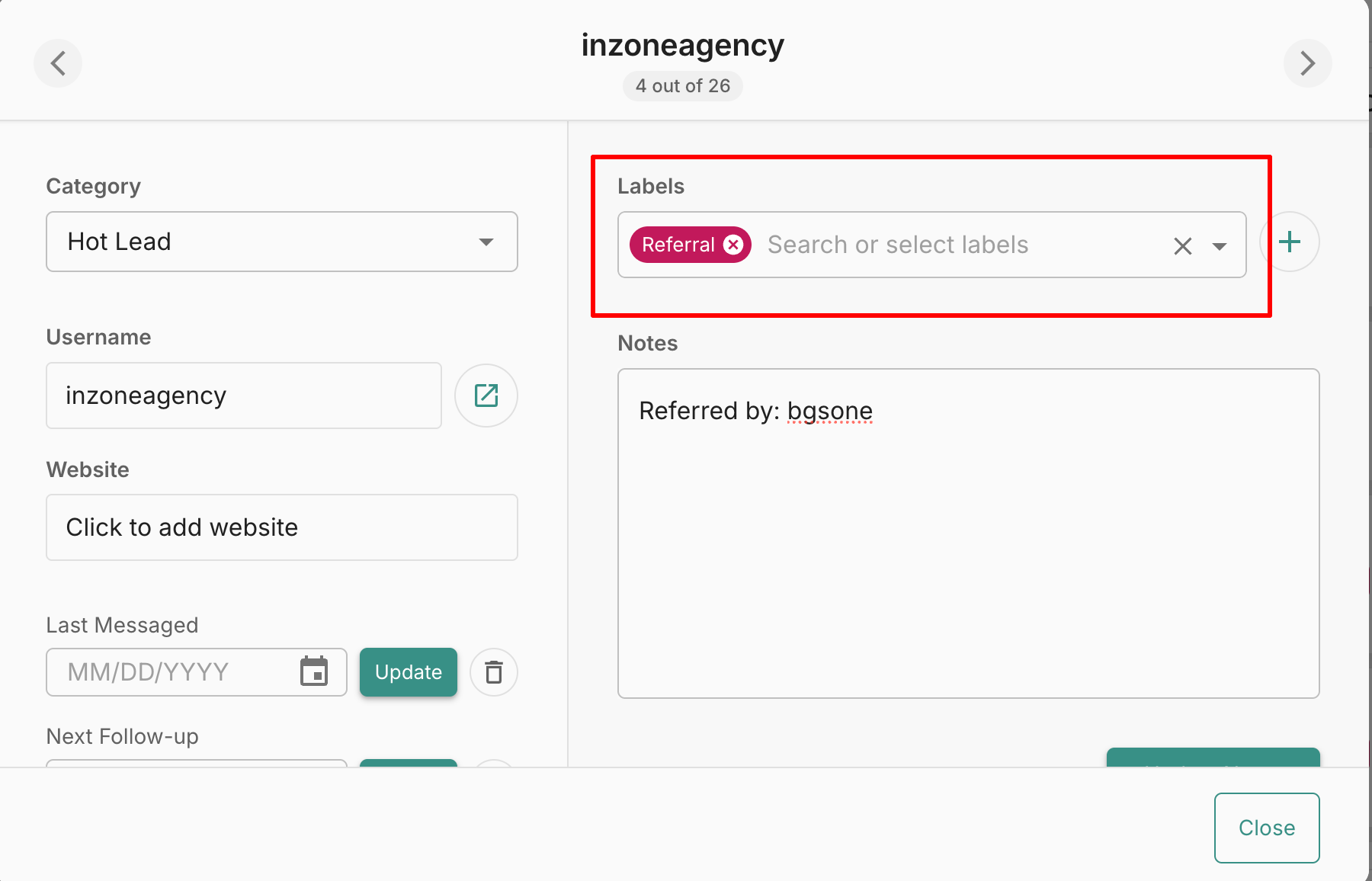](https://wiki.jehanzaib007.com/uploads/images/gallery/2025-12/FXxwV7686Gprr3XD-image.png)
```
Referred by: [Referrer Name / Username]
```
[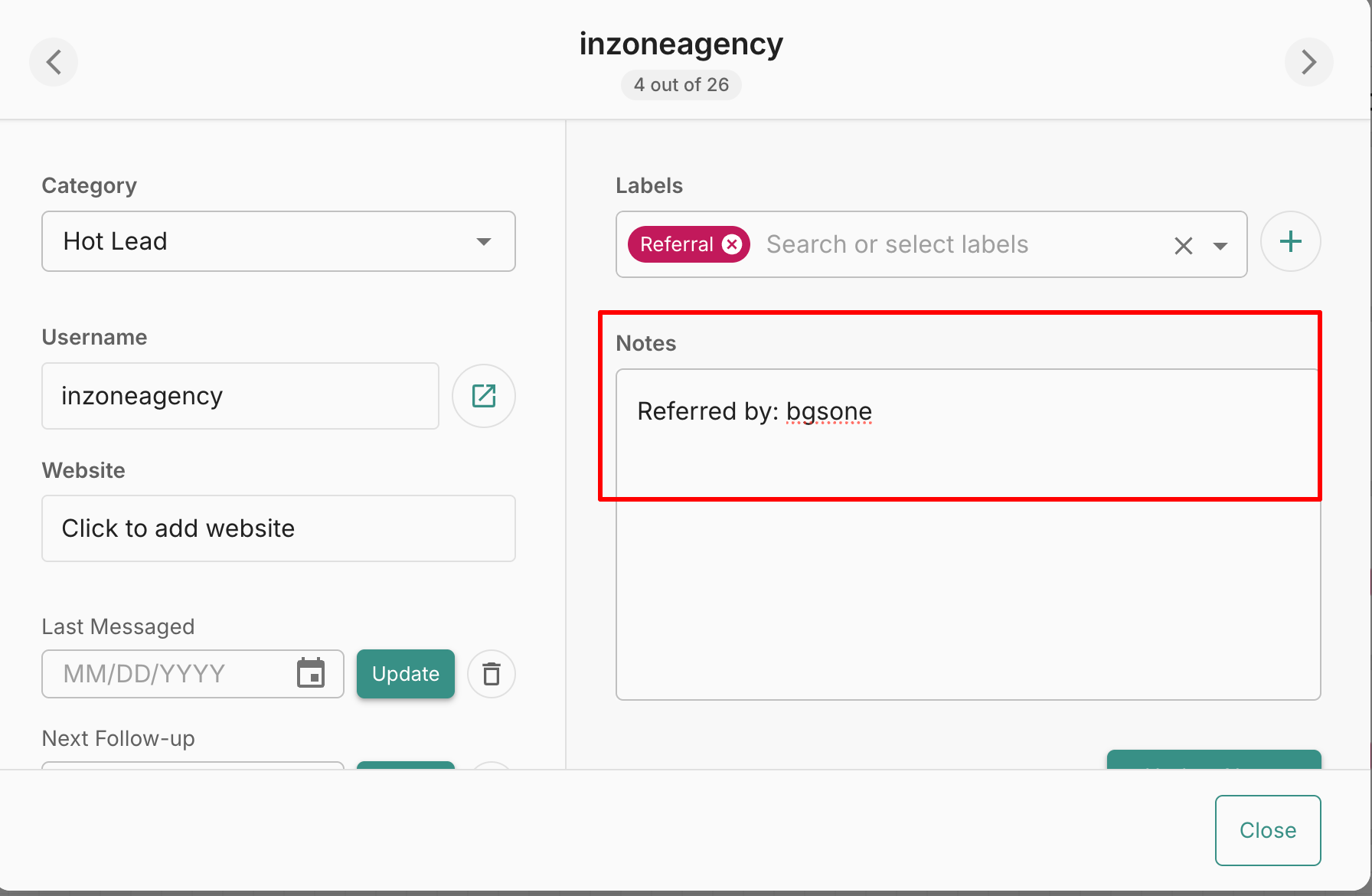](https://wiki.jehanzaib007.com/uploads/images/gallery/2025-12/q8BQbozy2N15e9on-image.png)
---
### **🚫 Non-Negotiable Rule**
**If the referral source is not logged in the CRM, the referral does not exist.**
No tracking = no rewards = system failure.
---
## **❌ Forbidden Language (Never Use)**
Do NOT say:
- “Please help me”
- “It would mean a lot”
- “I’m struggling for clients”
- “Can you do me a favor”This reduces perceived value.
---
## **🟡 Golden Rule**
**Referrals are asked at the moment of highest trust — not randomly, not emotionally.**
This SOP protects brand value and compounds growth.
# Project Status: How to Update and Maintain
# SOP – Project Delivery, Revisions, Acceptance & Closure
## **🎯 Objective**
The objective of this SOP is to create a clear, role-based system to handle the full project lifecycle from delivery to closure. This includes delivery, revisions, changes, acceptance, review, and final closure or archiving. The goal is to ensure projects are completed cleanly, tracked correctly, and closed only by the Project Closer.
---
## **🧱 Scope**
This SOP applies to all Fiverr website projects handled using Discord client threads, Carl Bot tags, and the ClickUp CRM. No project is exempt from this flow.
**Here is the complete tag list that we have right now :**
1.3star, 1.7star, 1star, 2.3star, 2.7star, 2star, 3.3star, 3.7star, 3star, 4.3star, 4.7star, 4star, 5star, autoaccept, awaiting\_deliveryapproval, changes1, changes10, changes2, changes3, changes4, changes5, changes6, changes7, changes8, changes9, deliverfinal, delivernodomain, deliverreturn, deliverscope, deliversubdomain, negative, pendinginfo, positive, projectclosed\_reviewdone, projectclosed\_reviewleft1, projectclosed\_reviewleft2, projectclosed\_reviewleft3, reviewleft, transfer, transfer\_complete
---
## **👥 Roles & Authority**
The Project Manager is responsible for delivering projects, communicating with the client, and triggering delivery-related Carl Bot tags. The Project Manager is not allowed to close projects.The Completion Facilitator is responsible for handling revisions and coordinating client changes. The Completion Facilitator notifies changes using Carl Bot tags and works alongside the Project Manager or Project Closer depending on shift timing. The Completion Facilitator is not allowed to close projects.The Project Closer is the only role authorized to close projects. The Project Closer handles acceptance confirmation, review verification, archiving decisions, and has final authority over project status.Developers are never allowed to close projects. Completion Facilitators are never allowed to close projects.
---
## **🧭 Standard Project Flow (Must Be Followed in Order)**
---
## **1️⃣ Delivery Stage**
Once the agreed project scope has been completed, delivery must be logged inside the Discord client thread using exactly one correct Carl Bot scenario tag. Delivery can be logged by the Project Manager, Completion Facilitator, or Project Closer.The correct tags must be selected based on the scenario. The deliverfinal tag is used when the final delivery is complete and no further changes are expected. The deliverscope tag is used when the first delivery is complete and revisions are expected. The delivernodomain tag is used when the client does not yet have domain or hosting. The deliverstaging tag is used when the client has an existing live website and a preview or staging link is used. The deliverbackup tag is used when transfer is blocked and a backup has been secured. The deliverautocomplete tag is used when Fiverr auto-completes the order. The deliverreturn tag is used when a client returns after a long period of inactivity.Only one delivery tag is allowed per delivery event. Scenarios must never be mixed.
---
## **2️⃣ Revision and Changes Stage**
When the client submits changes, each completed revision round must be logged using the Carl Bot change tags. These are changes1 through changes10. One tag represents one completed round of changes.Changes are notified by the Completion Facilitator during normal operations and by the Project Closer during handover or overlap timing between shifts. Free-text change updates are not allowed, and revision numbers must never be skipped.
---
## **3️⃣ Confirmation Stage**
Before any final re-delivery, the client must confirm whether additional changes are required. Re-delivery is not allowed without this confirmation.
---
## **4️⃣ Acceptance Stage**
When the client accepts the delivery but has not yet left a review, the reviewleft Carl Bot tag must be used. This places the project into review follow-up mode and signals that the delivery has been accepted.
---
## **5️⃣ Review Stage**
When the client submits a review, the exact rating must be logged using the appropriate Carl Bot tag. Examples include 5star, 4.7star, 4.3star, 3star, and other relevant rating tags. Logging the exact rating is mandatory for reporting, accountability, and internal analytics.
---
## **6️⃣ Project Closure Stage**
Projects may be closed only by the Project Closer. Before closing, the Project Closer must verify that a delivery tag exists, all changes have been completed, and acceptance or review status has been logged.Once verified, the Project Closer updates the project status in ClickUp from Delivered to Completed. The Project Closer must also ensure that the Discord thread clearly shows either a rating tag or the reviewleft tag. No other role is permitted to close a project.
---
## **7️⃣ Archiving Scenarios**
Archiving is handled only by the Project Closer and is used when a client disappears, when transfer is delayed long-term, or when a project is completed but inactive. The correct tags for archiving scenarios are deliverbackup, deliverautocomplete, and deliverreturn. In all archiving cases, a full backup must be secured internally.
---
## **⚠️ Strict Rules (Non-Negotiable)**
Free-text status updates are not allowed. Projects must not be closed by the Project Manager or Completion Facilitator. Incorrect scenario tags must not be used. No steps in this SOP may be skipped.Discord serves as the activity log. Carl Bot is the factual record. ClickUp is the system for execution and final closure.
---