# Project Closer
This book serves as the complete **SOP and reference guide** for the **Project Closer** role at **Upastra Digital Media**. It defines the purpose, workflows, and responsibilities of the team members who ensure that every completed client project is properly finalized, documented, and delivered according to Upastra’s internal standards.
# Daily Tasks Guide - How To Do Daily Tasks
# How to upload a project
- Create a new project on ClickUp with the name of the client Name with Country Like Name (Country)
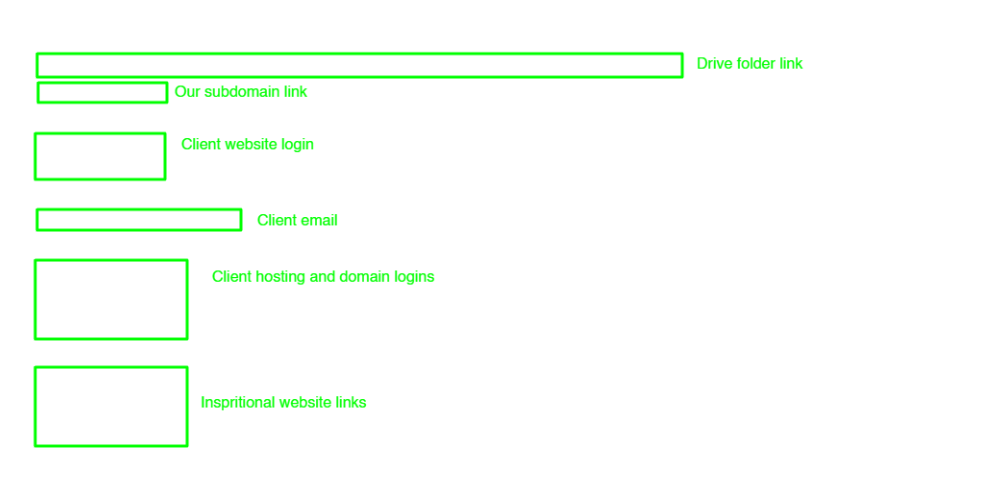
- Create a folder with the client name in this account drive (smtp…) and paste this folder link to the click-up description section as shown in the photo.
- Take screenshots of all chats of the client bout conversion and order chat download and download all the images, videos, and files from the client chat.
- Upload all the data to the drive must use this account (SMTP…) when uploading the data to the client folder.
- Create a subdomain with the same name that we use for click-up and paste links in the clickup description section as shown in the photo.
- Upload client logins to the Client Login list.
- Upload client inspirational website links at the bottom of the click-up description as shown in the photo.
Note: Use the same format in the description section whenever uploading the project. As shown in the photo.
[](https://wiki.jehanzaib007.com/uploads/images/gallery/2025-11/image.png)
- Send all the important links to the Discord Activity section that are difficult to copy from screenshots and other important links.
- Send if have done meeting. all the meeting links to the Discord Activity section.
- Update the order date on ClickUp if the order is in progress.
- Set the priority tag with the help of the Order Tag SOP’s.
**Changes the status of that project with the help of Order Status SOP’s.**
# How to Start or Create a New Project | Step-by-Step SOP
### **Purpose**
This SOP outlines the step-by-step process for uploading a new client project. It ensures that every project is properly documented, organized, and tracked from the beginning, maintaining consistency and data security across all team members.
---
## **1. Requirements Checklist**
Before starting the project upload process, make sure you have collected the following items from the client:
- ✅ **Inspirational Website(s)** (reference links or design examples)
- ✅ **Logo** (in PNG, SVG, or vector format)
- ✅ **Content** (text, images, and any brand material)
- ✅ **Login Details** (WordPress, hosting, domain, or cPanel)
- ✅ **Total Pages and Their Names** (complete sitemap if available)
- ✅ **Any Specific Notes** (special requests, colors, fonts, or functionality)
Ensure all of these materials are complete before proceeding.
---
## **2. Project Uploading Steps**
### **Step 1: Create a New Project in ClickUp**
- Open ClickUp and create a **new task/project**.
- Use the following naming format:
**Client Name (Country)**
*(Example: John Smith (USA))*
- Add the project under the appropriate workspace or list (e.g., “Active Projects”).
---
### **Step 2: Create a Folder in Google Drive**
- Log in to the official **SMTP Drive account** (company-managed Google Drive).
- Create a new folder using the same name as the ClickUp project.
*(Example: John Smith (USA))*
- Copy the folder link and paste it in the **ClickUp Description section** — as shown in the reference photo.
- This folder will contain **all client files, media, and communication records.**
---
### **Step 3: Collect and Upload All Client Data**
- Take **screenshots of all client chats**, including conversion and order chat.
- **Download all images, videos, documents, and other files** shared by the client.
- Upload everything to the client’s folder in the **SMTP Drive account**.
- Double-check that all files are uploaded correctly and organized in labeled subfolders (e.g., “Logo,” “Content,” “References”).
---
### **Step 4: Create a Subdomain for the Project**
- Create a **new subdomain** using the same name used in ClickUp.
*(Example: johnsmith.youragencydomain.com)*
- Upload the project files or WordPress installation to this subdomain.
- Paste the subdomain link in the **ClickUp Description section** below the Drive folder link (as shown in the reference photo).
---
### **Step 5: Add Client Login Details**
- Add the **client’s login credentials** (WordPress, hosting, or domain) to the **Client Login List** spreadsheet or document.
- Ensure the credentials are stored securely and accurately.
---
### **Step 6: Add Inspirational Website Links**
- At the bottom of the ClickUp description section, paste the **inspirational website links** shared by the client.
- Follow the same structure shown in the reference photo to maintain consistency.
---
### **Step 7: Update Discord Activity Section**
- Go to the **Discord Activity channel**.
- Send all important links that are difficult to copy from screenshots (e.g., Drive folder, subdomain, or project file links).
- If a meeting was held with the client, also send the **meeting link and notes** to the Discord Activity section for tracking.
---
### **Step 8: Update Project Information in ClickUp**
- Update the **order date** in ClickUp if the order is still in progress.
- Set the **priority tag** following the **Order Tag SOP.**
- Update the **status** of the project according to the **Order Status SOP.**
---
## **Important Notes**
- Always use the same **description format** inside ClickUp as shown in the reference image.
- Ensure all uploaded materials are stored under the official **SMTP Drive account** only.
- Maintain a professional and organized structure for every project — no personal accounts or local storage should be used.
- Double-check all links (Drive, subdomain, etc.) before marking the project as uploaded.
# How to transfer a website
**Subdomain**
- Step1-Delete plugin Envato elements Also save the template kit name to ClickUp
- Step2-Checking favicon
- Step3-Tick the Checkbox from Setting -> Reading Settings -> (Discourage search engines from indexing this site)
- Step4-Back-up (All-in-One WP Migration)->file->Export->download
**Client website**
- Step 1- (If the website is shown )Then Back-up (All-in-One WP Migration)->file->Export->download (If not any website on the client website then not necessary to make a backup)
- Step 2- Upload and Install (All In One Migration) plugin Note: Here use (ALL IN ONE 100GB) that we saved on our computer
- Plugins Name-(Big File Uploads)
- Step 4- Import the file that we download from our subdomain
- Step 5- Refresh and log in again with the username and password that was our Sundomain has (Marshal@007)
- Step 6- Update permalinks from the setting
- Step 7- UnTick the Checkbox from Setting -> Reading Settings -> (Discourage search engines from indexing this site)
- Step 8- Checking in incognito if not loading images or pages may be a case issue ( how to solve: install the plugin (file manager) delete file htaccess and then update Permalinks from setting It will be working)
- Step 9- Checking Email from the contact form page and change all our email using clients' email --- from -> Setting-> ( by using this address after URL eg, ---https://abc.com/wp-admin/options.php---
- Step 10- Delete all the extra Plugin, themes, posts, and pages from the trash
- Step 11- Installing security plugins ---> Wordfence, Enhancement, Itheme, wp-limit, Yoast SEO, and SMTP (only website that has contact form install smtp)
- Step 12- Update on ClickUp changes status and add tag name Transfer
- Step 12- At the time when we send login to the client add a new user and password
# How to close a project
**Project closing steps:**
- Confirm Login Details are saved (client website list) and make sure sent to client... [Login Details](https://docs.google.com/spreadsheets/d/1c-tHw7DAmn4_C1SWm_HODqMgJjPfzYT3G4S95difCxg/edit?usp=sharing)
- Make AllInOne Backup from the client's website and delete (All In One Plugin) If Clinte has changed the Login Make a backup from our subdomain
- Send backup to the client if the Review is done else save it on the computer and send him after the review time, which is 30 days. And assign a label (review left) to that client
- Changes labels on Fiverr As to (Marshal)
- Delete the Subdomain but first confirm you have made a backup of this same website may be from the client domain
- Change the label to close on Clickup.
[Client Website Logins List](https://docs.google.com/spreadsheets/d/1c-tHw7DAmn4_C1SWm_HODqMgJjPfzYT3G4S95difCxg/edit?usp=sharing) [Elementor Client List ](https://docs.google.com/spreadsheets/d/1gNy8eE8xzJ0nhb4m3FkoZsetP8bY64Pe6I2cOmyd7e0/edit?gid=0#gid=0)
# How To Get Review From Review Left Client & Update it Properly
# SOP – Handling & Uploading Client Changes (Revisions)
# **🎯 Objective**
Ensure **all client-requested changes** are:
- Properly documented
- Safely stored
- Clearly communicated
- Correctly tracked in ClickUp
No data loss. No missed instructions. No confusion.
---
## **🧱 Scope**
Applies to:
- All Fiverr website projects
- All revision / change requests (1st, 2nd, 3rd… onwards)
---
## **⚠️ Core Rules (Non-Negotiable)**
- ❌ Never overwrite old files
- ❌ Never rely only on chat memory
- ❌ Never skip screenshots
- ✅ Every change request must have its **own folder**
---
## **🧭 Step-by-Step Process**
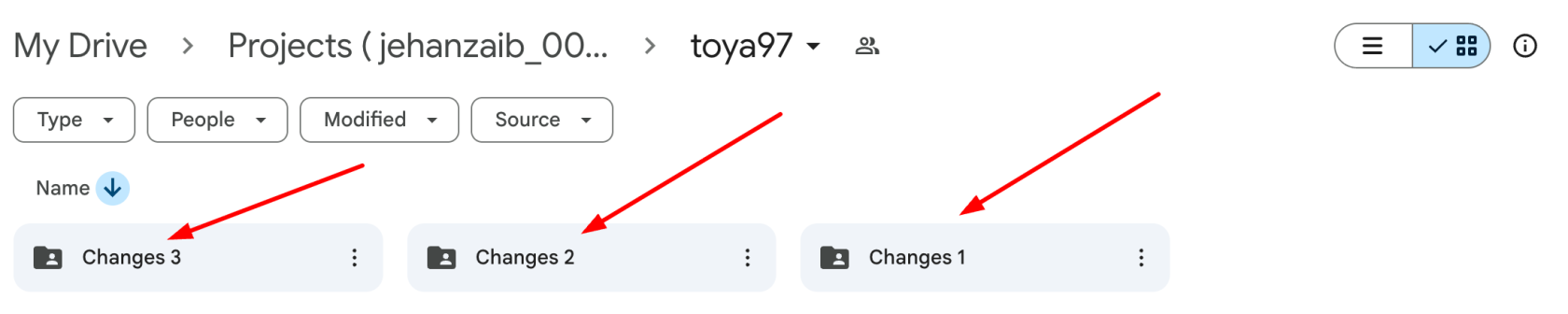
### **🔹 Step 1: Create Changes Folder (Mandatory)**
In the project Google Drive:
- For first revision:
changes\_1
- For second revision:
changes\_2
- Continue sequentially:
changes\_3, changes\_4 …
🚫 Never rename or reuse an old changes folder.
[](https://wiki.jehanzaib007.com/uploads/images/gallery/2025-12/BLl61MUpyjp3u9G7-image.png)
---
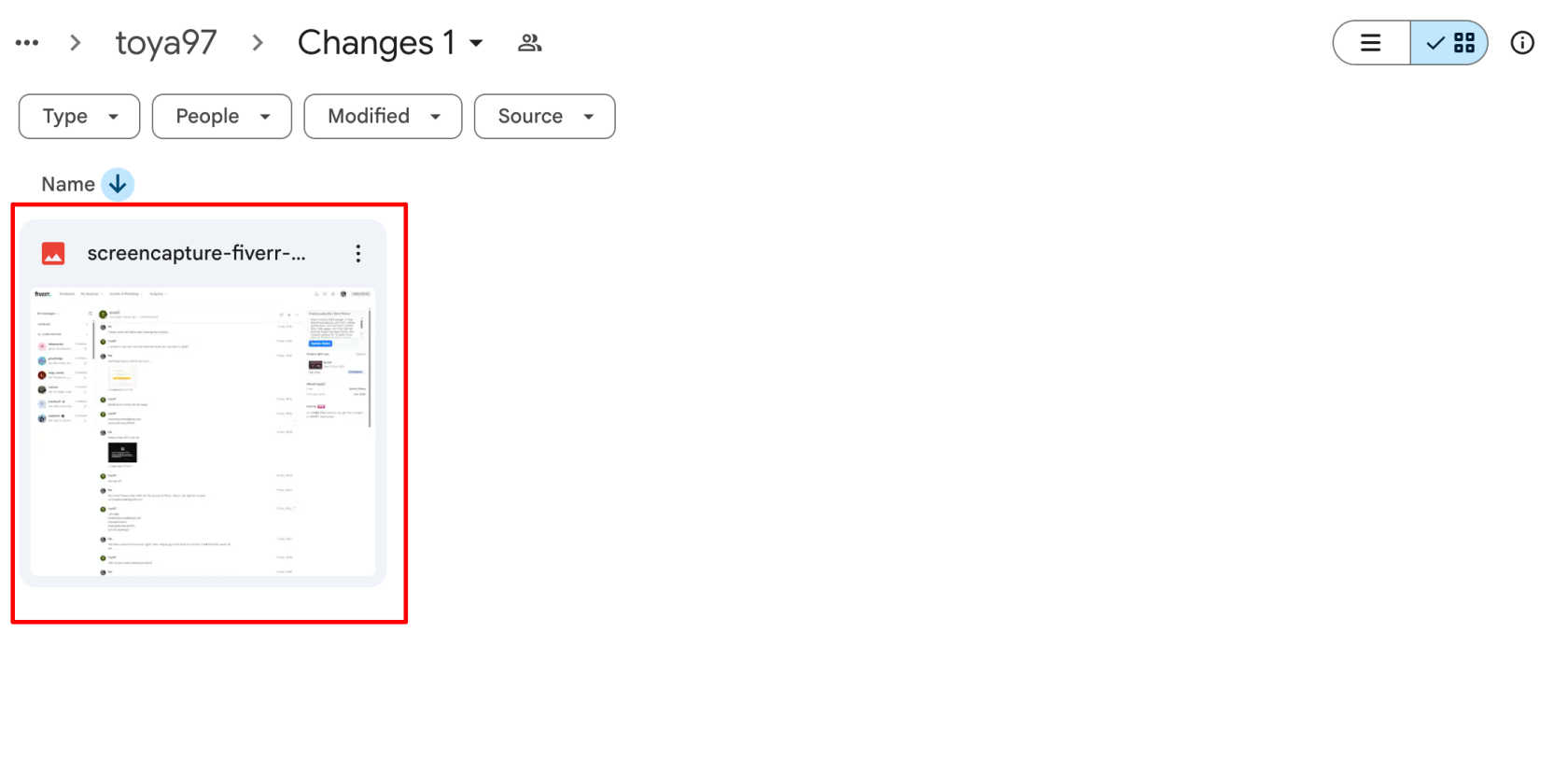
### **🔹 Step 2: Capture Client Messages (Proof Required)**
Take **screenshots** of:
- Fiverr **Order Chat**
- Fiverr **Inbox / Conversation Chat ( Using Go Full Page Extension. )**
These screenshots must clearly show:
- Client instructions
- Date & time
- Any links or files mentioned
📸 Screenshots are mandatory even if the message is “simple”.
[](https://wiki.jehanzaib007.com/uploads/images/gallery/2025-12/3LEMq1ZU8eX1rffv-image.png)
---
### **🔹 Step 3: Download All New Client Data**
Download **everything** the client sent, including:
- Images
- PDFs
- Docs
- Links (save in a text file if needed)
- Voice notes (if any)
🚫 Do NOT rely on external links staying active.
---
### **🔹 Step 4: Upload Data to Changes Folder**
Upload the following into the relevant changes\_X folder:
- All downloaded files
- All chat screenshots
- Any notes or clarifications (if required)
Upload using the Upastra Drive And client folder only **account only**
**(no personal accounts allowed).**
---
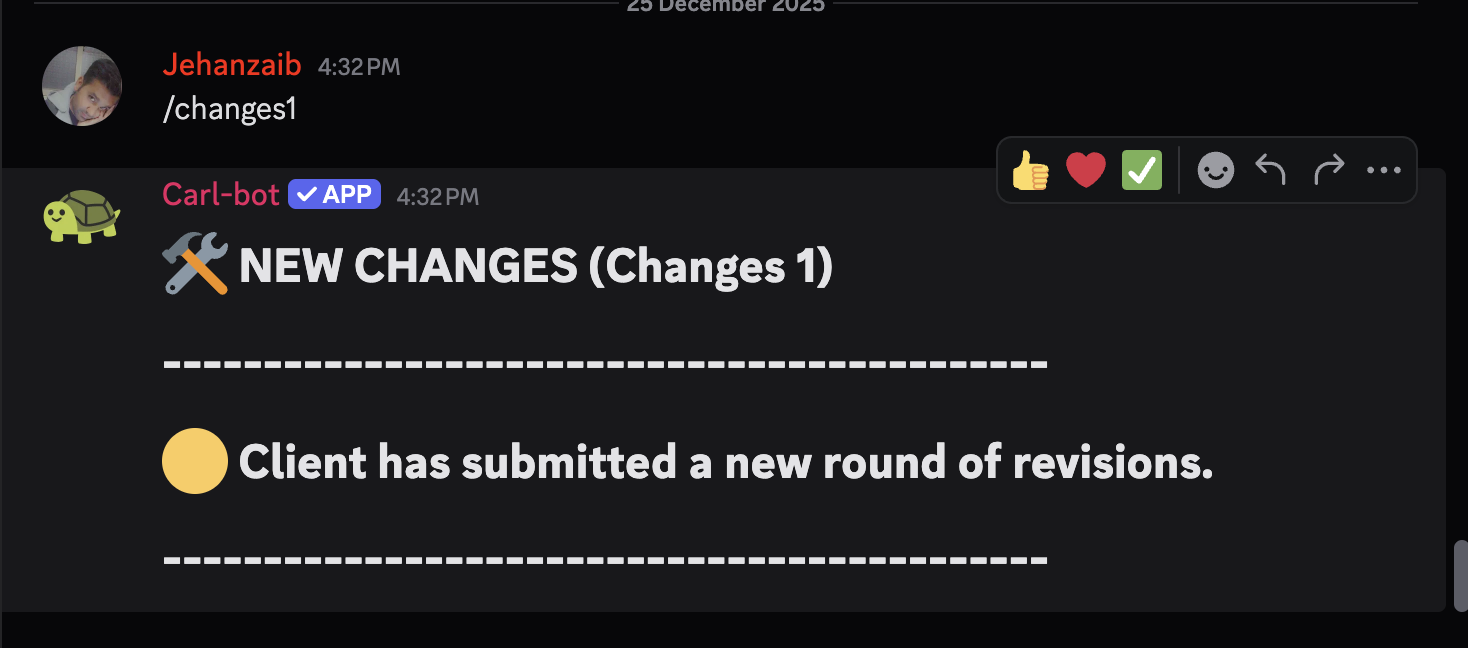
### **🔹 Step 5: Discord Update (Carl-bot – Mandatory)**
In the **client’s Discord thread → Activity section**:
- Use **Carl-bot quick commands only**
- Do **NOT** type manual messages
Use the command matching the change round:
/changes1 → First round
/changes2 → Second round
/changes3 → Third round
…
/changes10 → Tenth round
📌 Carl-bot already contains predefined messages.
**Rules:**
- Command number must match the Drive folder (changes\_1, changes\_2, etc.)
- Always use the next sequential command
- Never reuse or skip a number
🚫 If a change round is not logged via Carl-bot, it is **not considered an official revision**.
[](https://wiki.jehanzaib007.com/uploads/images/gallery/2025-12/duKYPCXnjiaTOA4k-image.png)
---
### **🔹 Step 6: Update ClickUp Activity**
In the **ClickUp task → Activity / Comments** section:
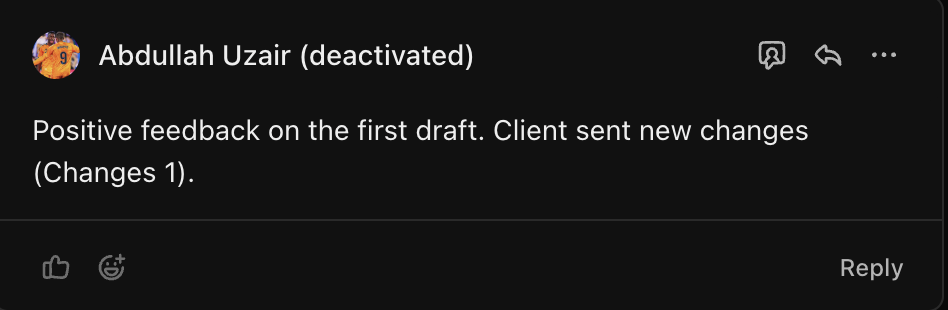
- Add a short update: **Changes : 1 , Changes : 2**
**Note: For First draft reply also add the positive, negative or moderate feedback from the client based on the client messages.**
[](https://wiki.jehanzaib007.com/uploads/images/gallery/2025-12/92D2sEfQtc1V7OHR-image.png)
### **🔹 Step 7: Update Project Status**
Finally:
- Change the task status to:
##### **New Changes**
🚫 Do not move the status before all previous steps are completed.
#### **🔍 Quality Check (Before Status Change)**
Confirm all are done:
- - Changes folder created ✔
- - Screenshots taken ✔
- - Data downloaded ✔
- - Files uploaded ✔
- - Discord updated ✔
- - ClickUp updated ✔
**If even ONE item is missing → stop.**
# How to Manage Logins - Add or Update Logins
# Fiverr Delivery Message SOP (Full-Proof)
#### **🎯 CORE RULE (NON-NEGOTIABLE)**
> **A delivery is COMPLETE when the agreed scope is finished and proof is shared. Revisions, transfers, logins, hosting, or silence from the client do not make a delivery incomplete.**
**Never imply incompletion in wording. Ever.**
---
#### **🚫 FORBIDDEN WORDS (AUTO-FLAG RISK)**
Never use in delivery or follow-ups:
- draft
- preliminary
- phase 1
- not final
- pending
- once finalized
- remaining work
- waiting on client
---
#### **✅ APPROVED WORDING**
Always use:
- completed as per the agreed scope
- implemented
- ready for review
- revisions included
- available for assistance
---
#### **📦 DELIVERY SCENARIOS & EXACT MESSAGES**
---
#### **🟢 SCENARIO 1**
### **Final Delivery (Client approved, no changes expected)**
**When to use**
- Client reviewed everything
- Client said “you can deliver”
- Site is final/live
**Delivery Message**
```
Hello,
I’m pleased to inform you that your order has been completed as per the agreed scope. Thank you for trusting me with your project.
Here is the website link :
Once you accept the final delivery, you’ll be prompted to leave a review. It will only take a moment, and I would truly appreciate your feedback.
If you have any questions or require any additional adjustments, please feel free to reach out through our Fiverr chat.
Best regards,
Jehan Zaib
```
---
#### **🟡 SCENARIO 2**
##### **First Scope Delivery (Initial version, expecting revisions)**
**When to use**
- Scope is complete
- First delivery
- Feedback expected
**Delivery Message**
```
The website has been completed in accordance with the agreed scope and is now ready for your review.
Website / Preview Link:
[URL]
Please review the website and let me know if there are any revisions included in your package. You may place the order in revision and share the details, and I will take care of the updates.
If everything looks good, you may proceed with accepting the delivery. Once accepted, you’ll be prompted to leave a review. It will only take a moment, and It really helps us freelancers to grow on the platform.
I’m available if you need any assistance.
```
---
#### **🔵 SCENARIO 3**
##### **Client has NO domain / NO hosting**
**When to use**
- Domain/hosting is client responsibility
- Site built on your subdomain
**Delivery Message**
```
The website has been completed as per the agreed scope in the order and is ready for review.
Since the domain and hosting are not yet available, I’ve shared a preview link.
Preview link:
Please review the website and let me know if there are any revisions included in your order. You can submit them via the revision request, and I’ll take care of the updates.
Once you’re ready, you can also share the domain and hosting access, and I’ll transfer the website for you.
```
---
#### **🟣 SCENARIO 4**
##### **Client has EXISTING website and doesn’t want overwrite yet**
**When to use**
- Live site exists
- Preview/staging used
**Delivery Message**
```
The website has been completed as per the agreed scope of our order and is ready for review.
Since your domain currently has an active website, I’ve shared a preview link so you can review everything before going live.
Preview link:
Please review and share any revisions included in your order. Once you’re satisfied, I can proceed with replacing the existing website on your domain.
Please note: once approved, the new website will replace the existing website currently live on your domain.
```
---
#### **🟤 SCENARIO 5**
#### **Transfer didn’t happen → Backup files provided**
**When to use**
- Transfer blocked
- Client inactive
- Backup delivery allowed
**Delivery Message**
```
Hi {username},
Just a quick update regarding your website.
The project was completed earlier and, as there hasn’t been any recent activity, the temporary preview has been archived. A full backup has been securely saved, so the website can be deployed or transferred anytime whenever you’re ready.
If you’d like to proceed or need any assistance, feel free to reach out — I’ll be happy to help.
```
⚠️ Never include usernames/passwords.
---
#### **⚪ SCENARIO 6**
##### **Auto-Completed Order (Client silent)**
**When to use**
- Fiverr auto-completed
- Courtesy follow-up only
**Message**
```
Hello {username}...,
Just a quick note to let you know the order has been auto-completed by Fiverr.
If you’d like any revisions included in your order or need help with anything related to the website, feel free to reach out anytime.
```
---
#### **🟠 SCENARIO 7**
##### **Client returns after months**
**Message**
```
No problem at all — I’ve already archived the website and have a full backup ready.
Once you’re ready, I can either transfer and deploy it for you or share the backup files so you can set it up yourself. Let me know how you’d like to proceed.
```
---
#### **🔁 REVISIONS DELIVERY RULE**
- Deliver **once** when scope is complete
- Handle revisions **inside the order**
- Do NOT re-deliver unless files changed
- Before final re-delivery, ask:
```
Please confirm if there are any further changes needed so I can proceed accordingly.
```
---
#### **🔒 SECURITY RULES (MANDATORY)**
Never:
- Share passwords in delivery
- Upload sensitive credentials
- Treat Fiverr as backup storage
Always:
- Ask client to share access **only if they want you to transfer**
- Keep backups on your own storage
---
#### **🧠 ADDITIONAL SCENARIOS YOU MAY FACE (Handled by SOP)**
✔ Third-party tools (Fillout, Calendly, GA, Stripe)
→ Feature delivered + temporary setup = complete delivery
✔ Large sites (files too big)
→ Preview + screenshots = valid proof
✔ Client delays content
→ Extend delivery, don’t deliver
✔ Client disappears forever
→ Archive + backup = protected
---
##### **🏁 GOLDEN RULE (PIN THIS)**
> **Deliver when scope is complete.**
> **Proof matters more than perfection.**
> **Language matters more than intention.**
---
#### **Final reassurance**
This SOP:
- Matches Fiverr support’s written guidance
- Covers **all real-world edge cases**
- Protects Top Rated status
- Scales cleanly for teams
You can now operate **without fear of wording-based warnings**.
---
Just tell me what you want to lock next.