# SOP – Handling & Uploading Client Changes (Revisions)

# **🎯 Objective**

<span style="color: rgb(0, 0, 0); white-space: pre-wrap;">Ensure </span>**all client-requested changes**<span style="color: rgb(0, 0, 0); white-space: pre-wrap;"> are:</span>

- <span style="color: rgb(0, 0, 0);">Properly documented</span>
- <span style="color: rgb(0, 0, 0);">Safely stored</span>
- <span style="color: rgb(0, 0, 0);">Clearly communicated</span>
- <span style="color: rgb(0, 0, 0);">Correctly tracked in ClickUp</span>

<span style="color: rgb(0, 0, 0);">No data loss. No missed instructions. No confusion.</span>

---

## **🧱 Scope**

<span style="color: rgb(0, 0, 0);">Applies to:</span>

- <span style="color: rgb(0, 0, 0);">All Fiverr website projects</span>
- <span style="color: rgb(0, 0, 0);">All revision / change requests (1st, 2nd, 3rd… onwards)</span>

---

## **⚠️ Core Rules (Non-Negotiable)**

- <span style="color: rgb(0, 0, 0);">❌ Never overwrite old files</span>
- <span style="color: rgb(0, 0, 0);">❌ Never rely only on chat memory</span>
- <span style="color: rgb(0, 0, 0);">❌ Never skip screenshots</span>
- <span style="color: rgb(0, 0, 0); white-space: pre-wrap;">✅ Every change request must have its </span>**own folder**

---

## **🧭 Step-by-Step Process**

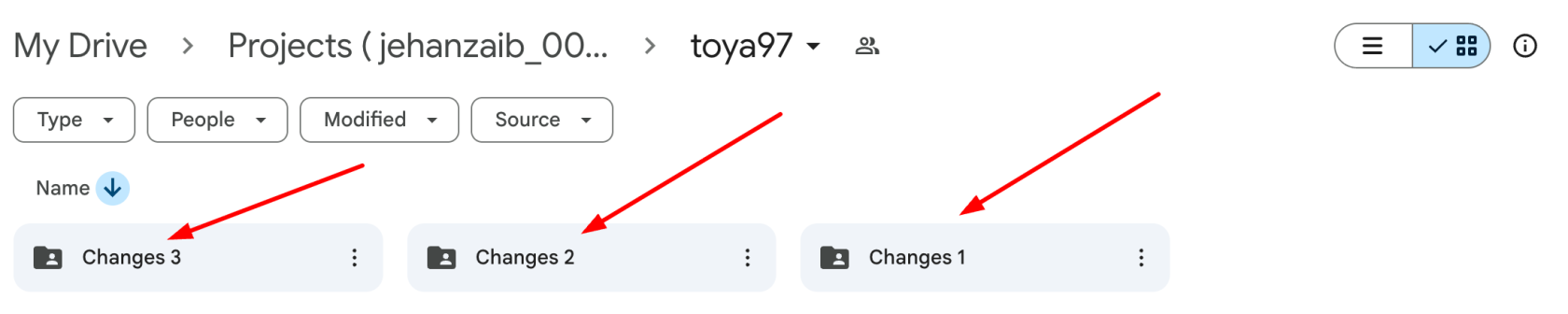
### **🔹 Step 1: Create Changes Folder (Mandatory)**

<span style="color: rgb(0, 0, 0);">In the project Google Drive:</span>

- <span style="color: rgb(0, 0, 0);">For first revision:</span>

<span style="color: rgb(0, 0, 0);">changes\_1</span>

- <span style="color: rgb(0, 0, 0);">For second revision:</span>

<span style="color: rgb(0, 0, 0);">changes\_2</span>

- <span style="color: rgb(0, 0, 0);">Continue sequentially:</span>

<span style="color: rgb(0, 0, 0);">changes\_3, changes\_4 …</span>

<span style="color: rgb(0, 0, 0);">🚫 Never rename or reuse an old changes folder.</span>

[![image.png](https://wiki.jehanzaib007.com/uploads/images/gallery/2025-12/scaled-1680-/BLl61MUpyjp3u9G7-image.png)](https://wiki.jehanzaib007.com/uploads/images/gallery/2025-12/BLl61MUpyjp3u9G7-image.png)

---

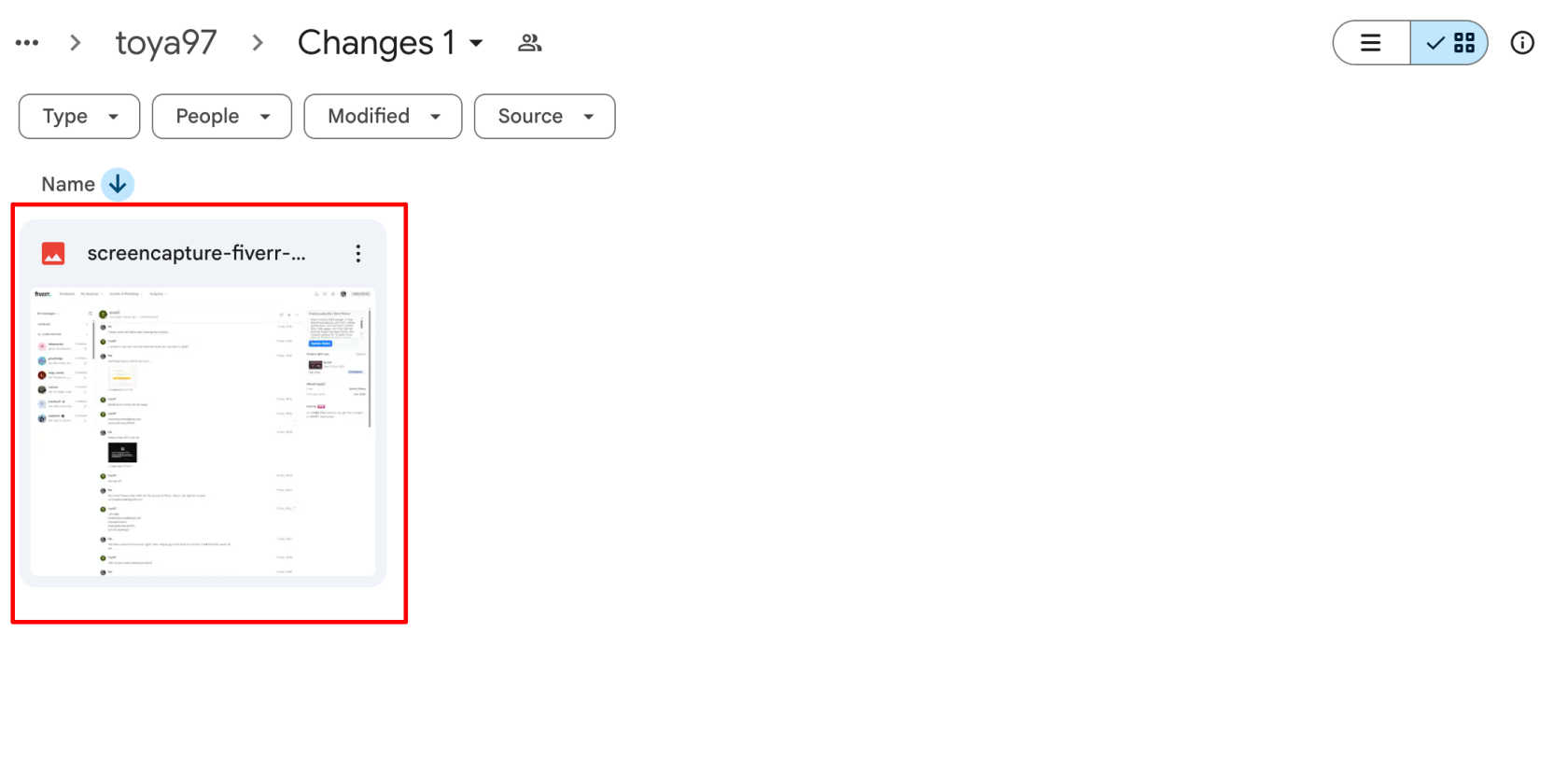
### **🔹 Step 2: Capture Client Messages (Proof Required)**

<span style="color: rgb(0, 0, 0); white-space: pre-wrap;">Take </span>**screenshots**<span style="color: rgb(0, 0, 0); white-space: pre-wrap;"> of:</span>

- <span style="color: rgb(0, 0, 0); white-space: pre-wrap;">Fiverr </span>**Order Chat**
- <span style="color: rgb(0, 0, 0); white-space: pre-wrap;">Fiverr </span>**Inbox / Conversation Chat ( Using Go Full Page Extension. )**

<span style="color: rgb(0, 0, 0);">These screenshots must clearly show:</span>

- <span style="color: rgb(0, 0, 0);">Client instructions</span>
- <span style="color: rgb(0, 0, 0);">Date &amp; time</span>
- <span style="color: rgb(0, 0, 0);">Any links or files mentioned</span>

<span style="color: rgb(0, 0, 0);">📸 Screenshots are mandatory even if the message is “simple”.</span>

[![image.png](https://wiki.jehanzaib007.com/uploads/images/gallery/2025-12/scaled-1680-/3LEMq1ZU8eX1rffv-image.png)](https://wiki.jehanzaib007.com/uploads/images/gallery/2025-12/3LEMq1ZU8eX1rffv-image.png)

---

### **🔹 Step 3: Download All New Client Data**

<span style="color: rgb(0, 0, 0); white-space: pre-wrap;">Download </span>**everything**<span style="color: rgb(0, 0, 0); white-space: pre-wrap;"> the client sent, including:</span>

- <span style="color: rgb(0, 0, 0);">Images</span>
- <span style="color: rgb(0, 0, 0);">PDFs</span>
- <span style="color: rgb(0, 0, 0);">Docs</span>
- <span style="color: rgb(0, 0, 0);">Links (save in a text file if needed)</span>
- <span style="color: rgb(0, 0, 0);">Voice notes (if any)</span>

<span style="color: rgb(0, 0, 0);">🚫 Do NOT rely on external links staying active.</span>

---

### **🔹 Step 4: Upload Data to Changes Folder**

<span style="color: rgb(0, 0, 0);">Upload the following into the relevant changes\_X folder:</span>

- <span style="color: rgb(0, 0, 0);">All downloaded files</span>
- <span style="color: rgb(0, 0, 0);">All chat screenshots</span>
- <span style="color: rgb(0, 0, 0);">Any notes or clarifications (if required)</span>

<span style="color: rgb(0, 0, 0);">Upload using the Upastra Drive And client folder only</span> **account only**

**(no personal accounts allowed).**

---

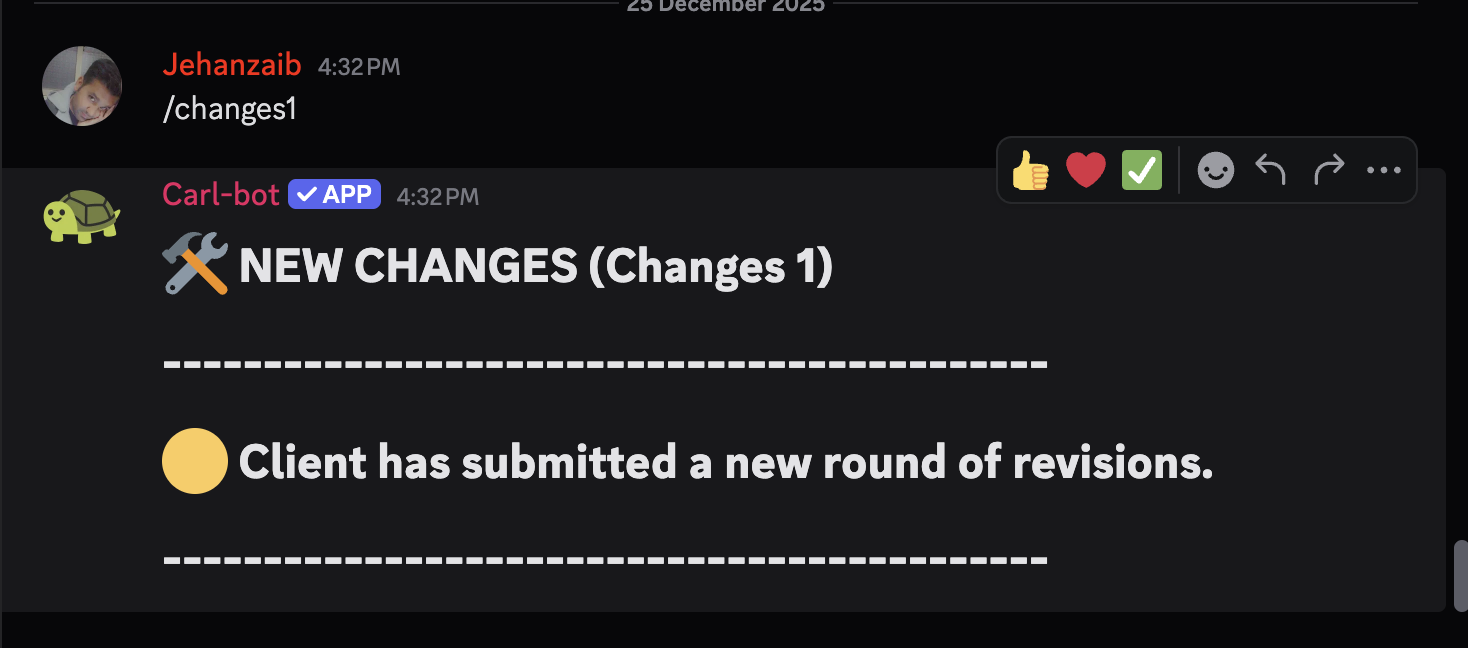
### **🔹 Step 5: Discord Update (Carl-bot – Mandatory)**

<span style="color: rgb(0, 0, 0); white-space: pre-wrap;">In the </span>**client’s Discord thread → Activity section**<span style="color: rgb(0, 0, 0);">:</span>

- <span style="color: rgb(0, 0, 0); white-space: pre-wrap;">Use </span>**Carl-bot quick commands only**
- <span style="color: rgb(0, 0, 0); white-space: pre-wrap;">Do </span>**NOT**<span style="color: rgb(0, 0, 0); white-space: pre-wrap;"> type manual messages</span>

<span style="color: rgb(0, 0, 0);">Use the command matching the change round:</span>

<span style="color: rgb(0, 0, 0);">/changes1 → First round</span>

<span style="color: rgb(0, 0, 0);">/changes2 → Second round</span>

<span style="color: rgb(0, 0, 0);">/changes3 → Third round</span>

<span style="color: rgb(0, 0, 0);">…</span>

<span style="color: rgb(0, 0, 0);">/changes10 → Tenth round</span>

<span style="color: rgb(0, 0, 0);">📌 Carl-bot already contains predefined messages.</span>

**Rules:**

- <span style="color: rgb(0, 0, 0);">Command number must match the Drive folder (changes\_1, changes\_2, etc.)</span>
- <span style="color: rgb(0, 0, 0);">Always use the next sequential command</span>
- <span style="color: rgb(0, 0, 0);">Never reuse or skip a number</span>

<span style="color: rgb(0, 0, 0); white-space: pre-wrap;">🚫 If a change round is not logged via Carl-bot, it is </span>**not considered an official revision**<span style="color: rgb(0, 0, 0);">.</span>

[![image.png](https://wiki.jehanzaib007.com/uploads/images/gallery/2025-12/scaled-1680-/duKYPCXnjiaTOA4k-image.png)](https://wiki.jehanzaib007.com/uploads/images/gallery/2025-12/duKYPCXnjiaTOA4k-image.png)

---

### **🔹 Step 6: Update ClickUp Activity**

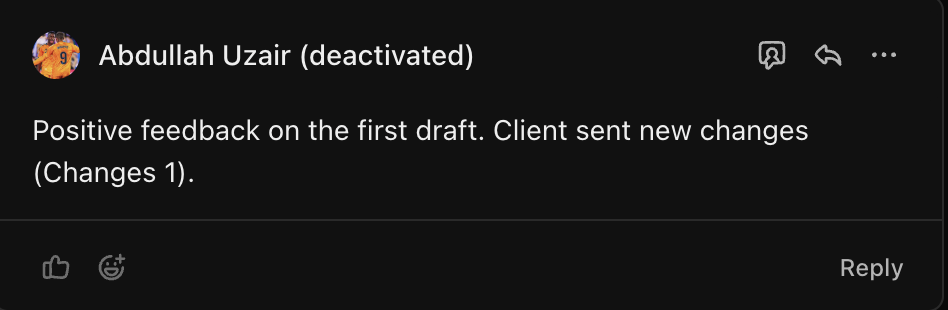
<span style="color: rgb(0, 0, 0); white-space: pre-wrap;">In the </span>**ClickUp task → Activity / Comments**<span style="color: rgb(0, 0, 0); white-space: pre-wrap;"> section: </span>

- <span style="color: rgb(0, 0, 0);">Add a short update:</span><span style="white-space: pre-wrap;"> </span>**Changes : 1 , Changes : 2**

**Note: For First draft reply also add the positive, negative or moderate feedback from the client based on the client messages.**

[![image.png](https://wiki.jehanzaib007.com/uploads/images/gallery/2025-12/scaled-1680-/92D2sEfQtc1V7OHR-image.png)](https://wiki.jehanzaib007.com/uploads/images/gallery/2025-12/92D2sEfQtc1V7OHR-image.png)
### **🔹 Step 7: Update Project Status**

<span style="color: rgb(0, 0, 0);">Finally:</span>

<span style="color: rgb(0, 0, 0);">- Change the task status to:</span>

#####  **New Changes** 

<span style="color: rgb(0, 0, 0);">🚫 Do not move the status before all previous steps are completed.</span>

#### **🔍 Quality Check (Before Status Change)**

<span style="color: rgb(0, 0, 0);">Confirm all are done:</span>

- <span style="color: rgb(0, 0, 0);">- Changes folder created ✔</span>
- <span style="color: rgb(0, 0, 0);">- Screenshots taken ✔</span>
- <span style="color: rgb(0, 0, 0);">- Data downloaded ✔</span>
- <span style="color: rgb(0, 0, 0);">- Files uploaded ✔</span>
- <span style="color: rgb(0, 0, 0);">- Discord updated ✔</span>
- <span style="color: rgb(0, 0, 0);">- ClickUp updated ✔</span>

**If even ONE item is missing → stop.**